Download and Install Revived OneNote for Windows 10 from Gem Menu
Uninstall OneNote for Windows 10 on Your Computer
If OneNote for Windows 10 is already installed on your machine, you will need to uninstall OneNote for Windows 10 first.Download and Install Gem Menu for OneNote UWP
Download and install from here: Gem Menu for OneNote UWP“Download OneNote UWP Reviver” Menu Item in Gem Menu
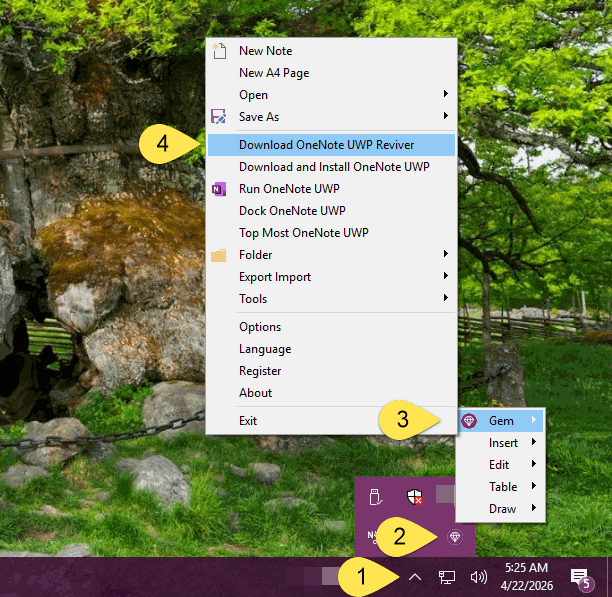
After installed Gem Menu for OneNote UWP, it automatically runs in the tray area in the bottom right corner of Windows. (generally folded in ^).- Click on the ^ (tray folding area) in the bottom right corner of Windows
- Click Gem Menu icon
- Click “Gem” menu
- Click “Download OneNote UWP Reviver” menu item.
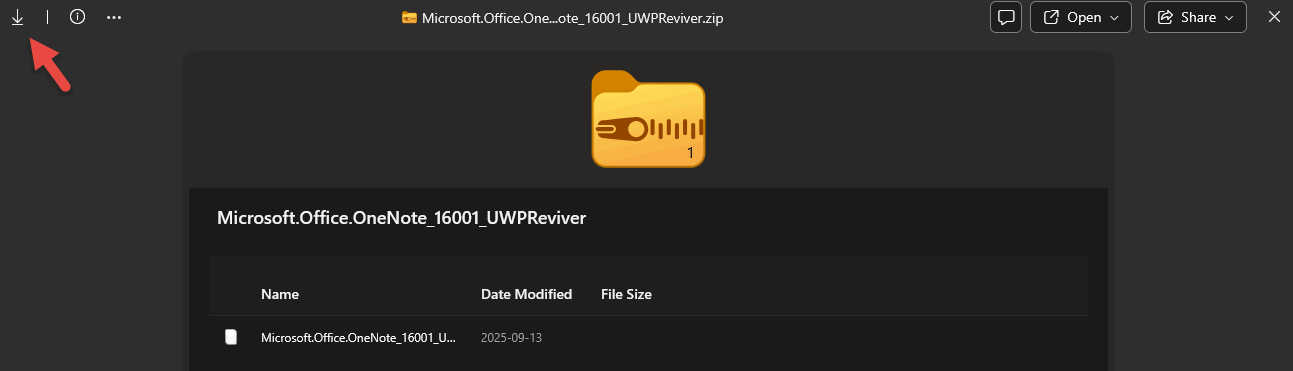
Download Microsoft.Office.OneNote_16001_UWPReviver.zip
Once you have entered your Microsoft account correctly to sign in, you will be redirected to the download page for Microsoft.Office.OneNote_16001_UWPReviver.zip.Click the ↓ icon in the upper left corner to download Microsoft.Office.OneNote_16001_UWPReviver.zip.
Unzip Microsoft.Office.OneNote_16001_UWPReviver.zip
Unzip Microsoft.Office.OneNote_16001_UWPReviver.zip, which contains the following files:- UWPReviver.exe
- Microsoft.Office.OneNote_16001.AppxBundle
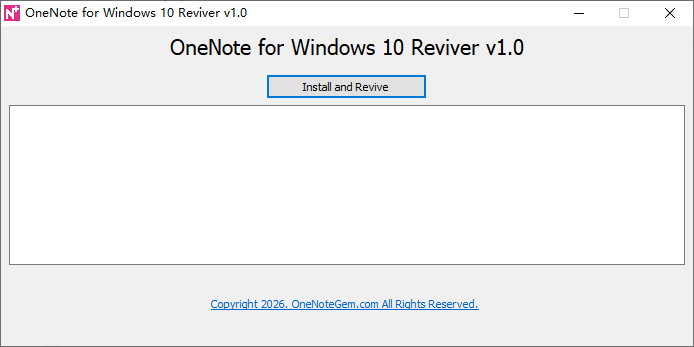
Perform Install and Revive
Run UWPReviver.exeThen click the 'Install and Revive' button, it will perform:
- Install Microsoft.Office.OneNote_16001.AppxBundle
- Set up OneNote for Windows 10。
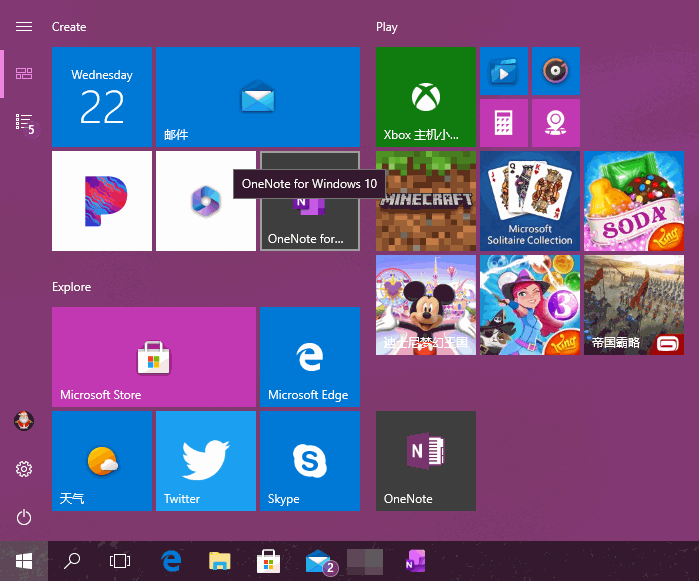
After success, you can see the OneNote for Windows 10 program icon in the Windows Start menu, just click Run normally.
OneNote for Windows 10 on Windows Start Menu