How to Import the section .one files tree into the specified Notebook in Office OneNote?
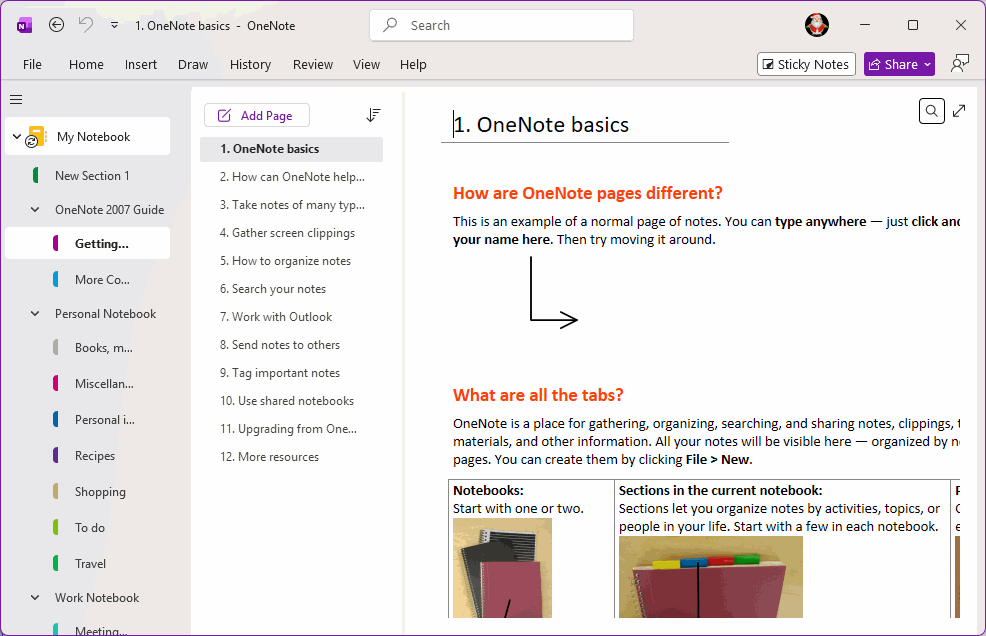
Section Structure Tree for Old Notebook
There is an old OneNote notebook, which contains 3 folders:- OneNote 2007 Guide
- Personal Notebook
- Work Notebook
These folders contain many .one files, and now I want to import them into Office OneNote's My Notebook using the original tree structure.
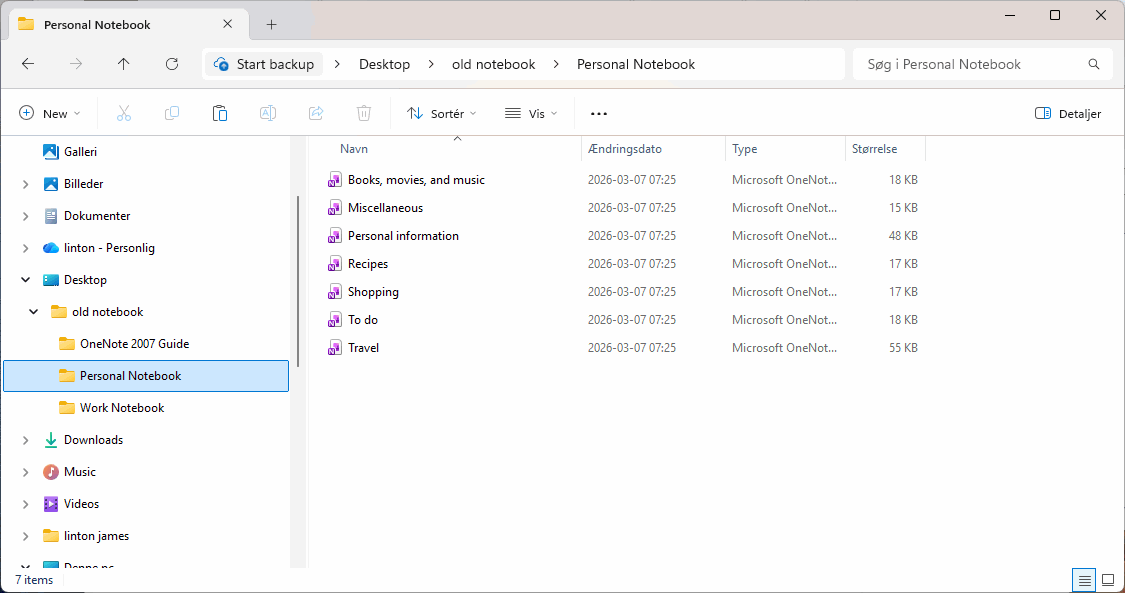
Office OneNote’s My Notebook
In Office OneNote, we have opened My Notebook, which has only one section called New Section 1.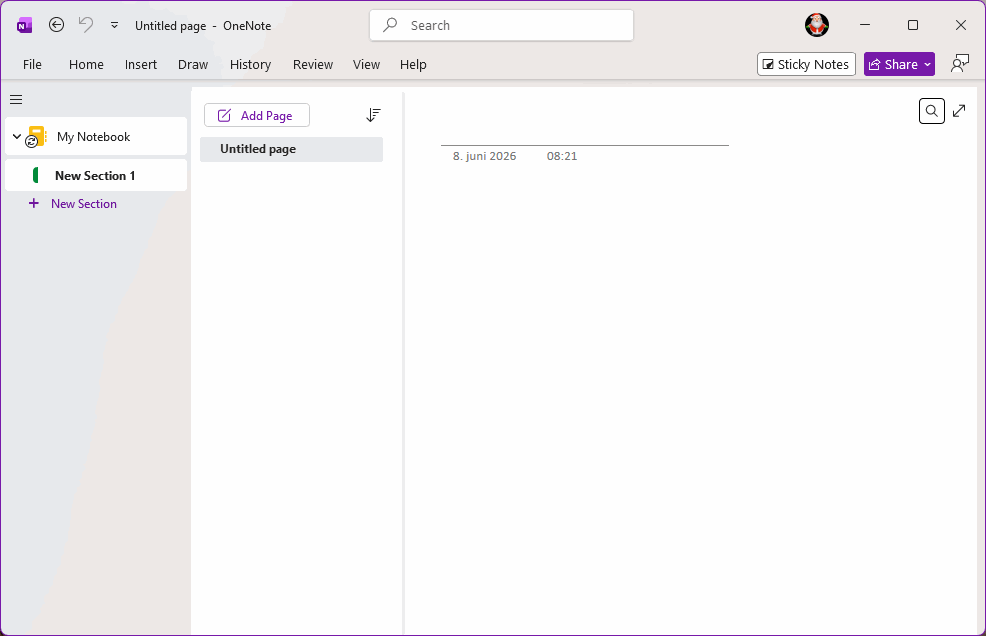
Open the Folder and Import It
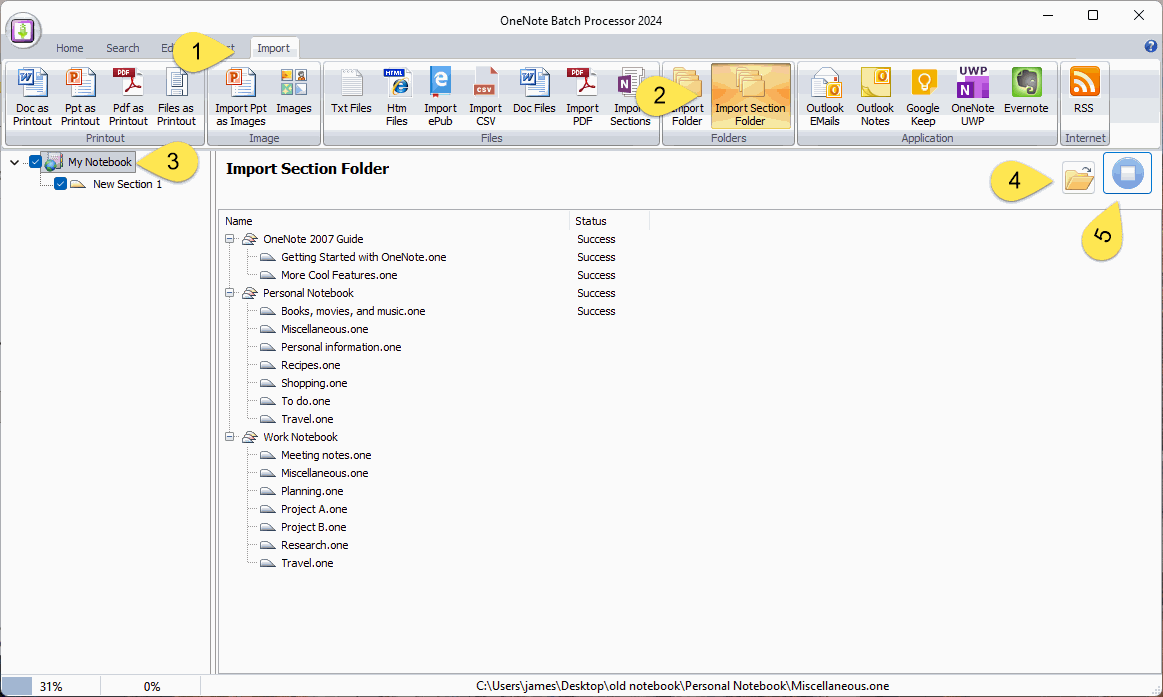
In OneNote Batch:- Click “Import” tab
- Click “Import Section Folder” feature
- In the notebook tree on the left, check the notebook you want to import: My Notebook
-
On the right side, click the Folder button to open the old notebook folder. Once opened, you can see:
-
After importing subfolders under Old Notebook, they will become section group
- OneNote 2007 Guide
- Personal Notebook
- Work Notebook
- .one files under Old Notebook will become sections
-
After importing subfolders under Old Notebook, they will become section group
-
Finally, click the "Start" button on the right to begin batch importing:
- If the import is successful, the Status column will display Success
View successfully Imported Section Groups and Sections
Once the OneNote Batch is successfully imported, return to Office OneNote to see the generated section groups, sections and pages.