How to Copy Multiple Sections and Section Groups to the Specified Notebook or Section Group at Once for Mac OneNote?
2026-01-09 08:41
Mac OneNote client doesn’t provide the ability to copy multiple sections and section groups at once.
OneNote Batch for Mac now offers the ability to select multiple sections or section groups in multiple notebooks and copy them to a specified notebook or section group at once.
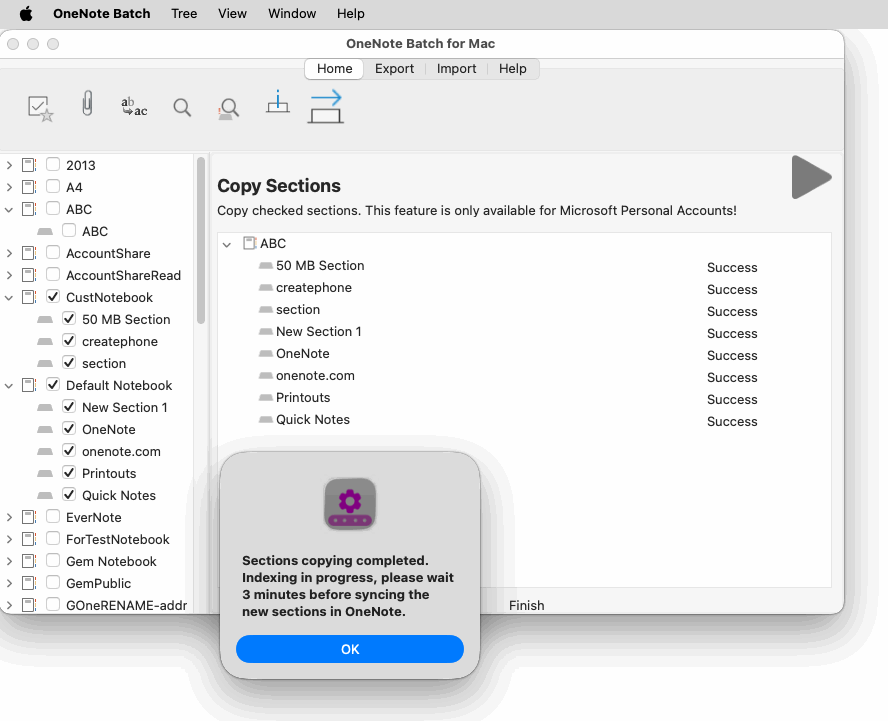
You can see that the sections and the section groups are copied to the specified target.
OneNote Batch for Mac now offers the ability to select multiple sections or section groups in multiple notebooks and copy them to a specified notebook or section group at once.
Pick Multiple Sections and Section Groups
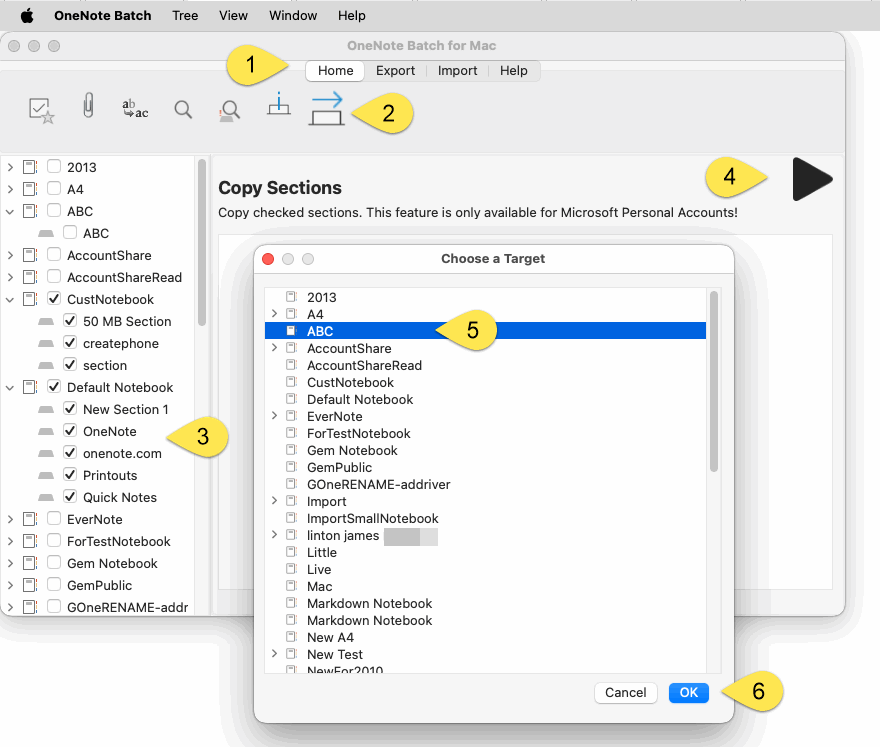
In OneNote Batch for Mac:- Click “Home” tab
- Click “Copy Sections” feature.
- In the notebook structure tree on the left, check the sections and section groups you want to copy. You can choose from multiple notebooks at the same time.
- Click the "Start" button on the right.
- In the pop-up "Choose a target" window, specify which notebook or section group you want to copy these sections to.
- After pressing OK, OneNote Batch Cloud starts performing replication.
After Copied, Wait for Indexing
After the OneNote Batch for Mac execution completes replication, the server indexes and waits for 3 minutes.Refresh the Notebook Structure Tree
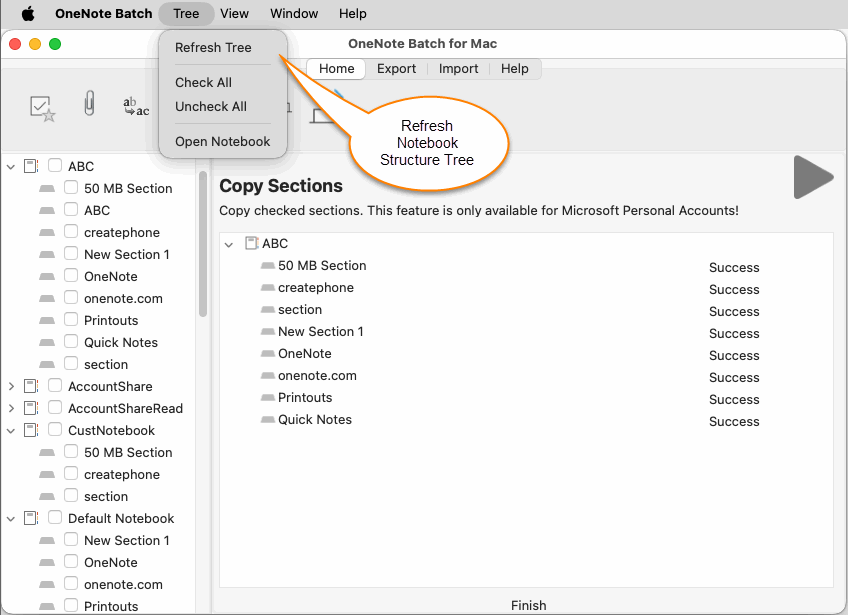
After waiting for 3 minutes, we can click the 'Refresh Tree' menu item to refresh the notebook structure tree through the right-click menu on the left side of the notebook structure tree.You can see that the sections and the section groups are copied to the specified target.

