Auto Scroll to Current Section in OneNote's Notebook Tree Pane, Making Current Section Visible
2026-08-15 06:52
Every time we open Office OneNote, the notebook pane on the left shows the top notebook.
Or, after searching, click on the search results. Although you can jump to a specified OneNote page, the notebook tree pane will never change and will not automatically display the section where that page is located.
This leads to unclear which notebook page it is. It's inconvenient.
OneNote Gem - Favorites as a navigation tool, it offers a new feature -- "Scroll to Section" which scrolls the notebook tree pane to the current section, making the current section appear in the notebook tree pane.
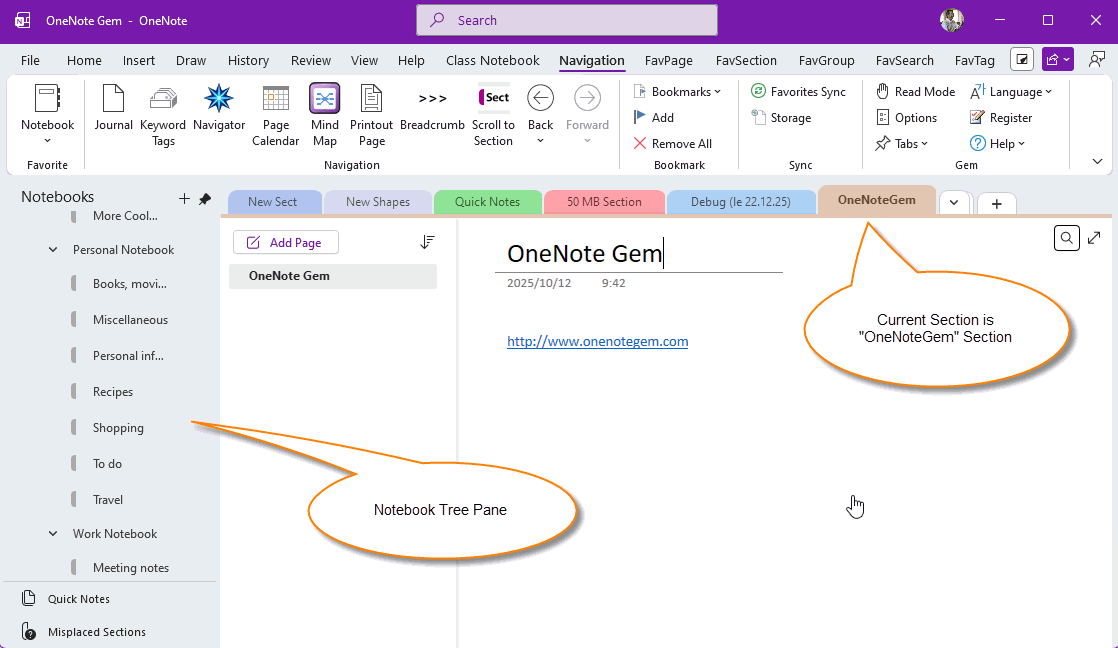
The "OneNoteGem" Section cannot be seen in the "Notebook Tree Pane"
From the image below, we see the general situation of OneNote:
- Current section is: OneNoteGem
- However, in the "Notebook Tree Pane" on the left, you can't see the current section of OneNoteGem.
The "Scroll to Section" feature of OneNote Gem - Favorites
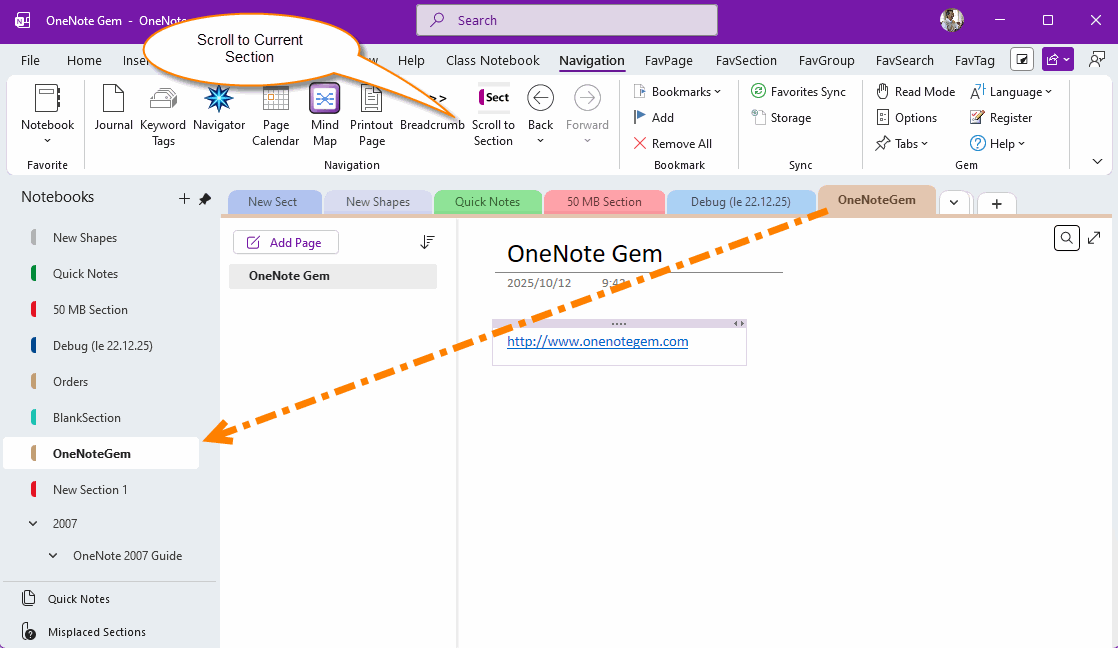
Click OneNote Gem - Favorites add-in, "Navigation" tab -> "Scroll to Section" feature.
The notebook tree pane on the left side of OneNote will automatically scroll to the current "OneNoteGem" section.
This allows the "OneNoteGem" section to appear in the notebook tree pane.
This makes it easy to check the notebook it is located on and the nearby sections.