How to Insert PDF as Printouts into Android OneNote, Read and Take Notes on Them
2026-10-01 07:24
Many people want to import PDF into OneNote for Android, but don't know how to do it.
Steps:
1.Open the target note page in OneNote for Android where you want to import the PDF, and tap the [➕] icon at the bottom of the screen.
![Open the target note page in OneNote for Android where you want to import the PDF, and tap the [➕] icon at the bottom of the screen.](/uploads/docimg/android-onenote/page/insert-button.gif)
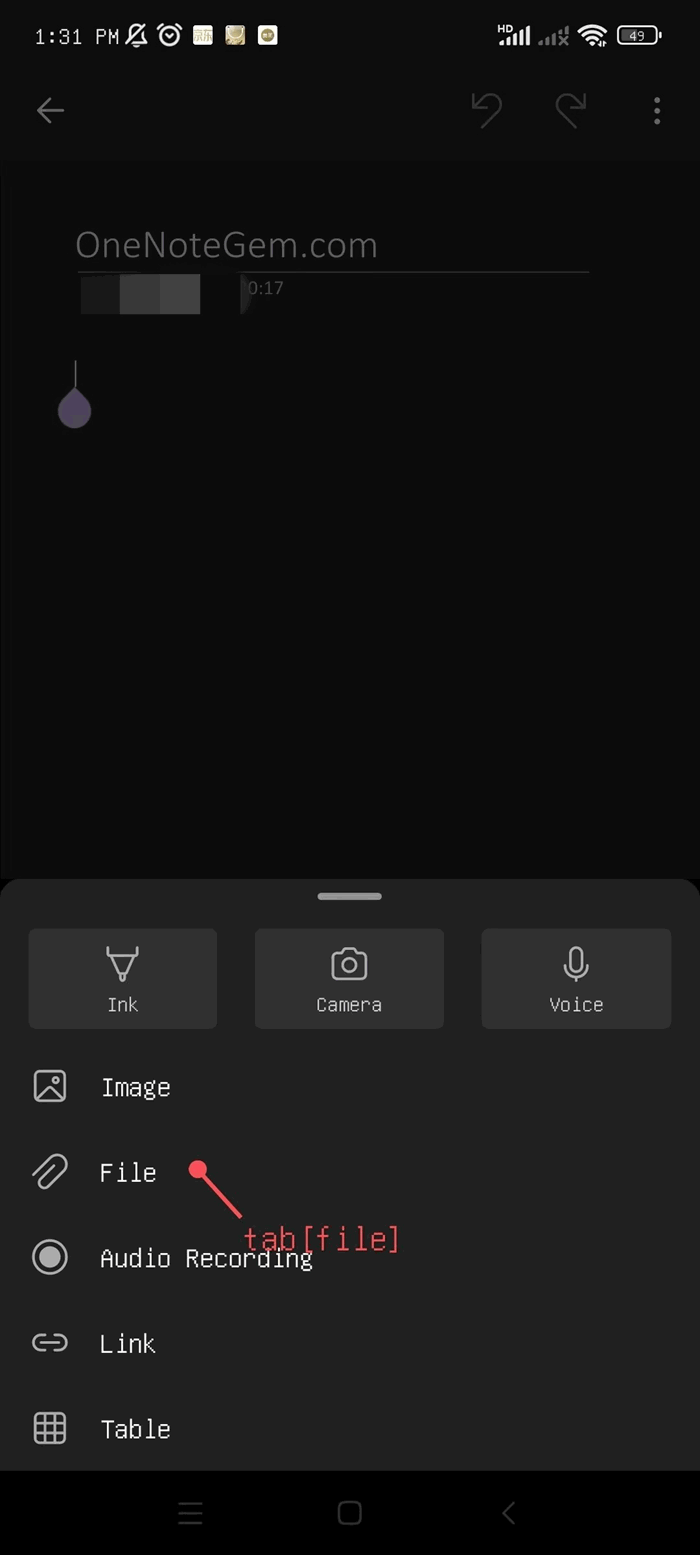
2.Then tap the [File] function.
3. Find the PDF file you want to import and tap it.
2.Then tap the [File] function.
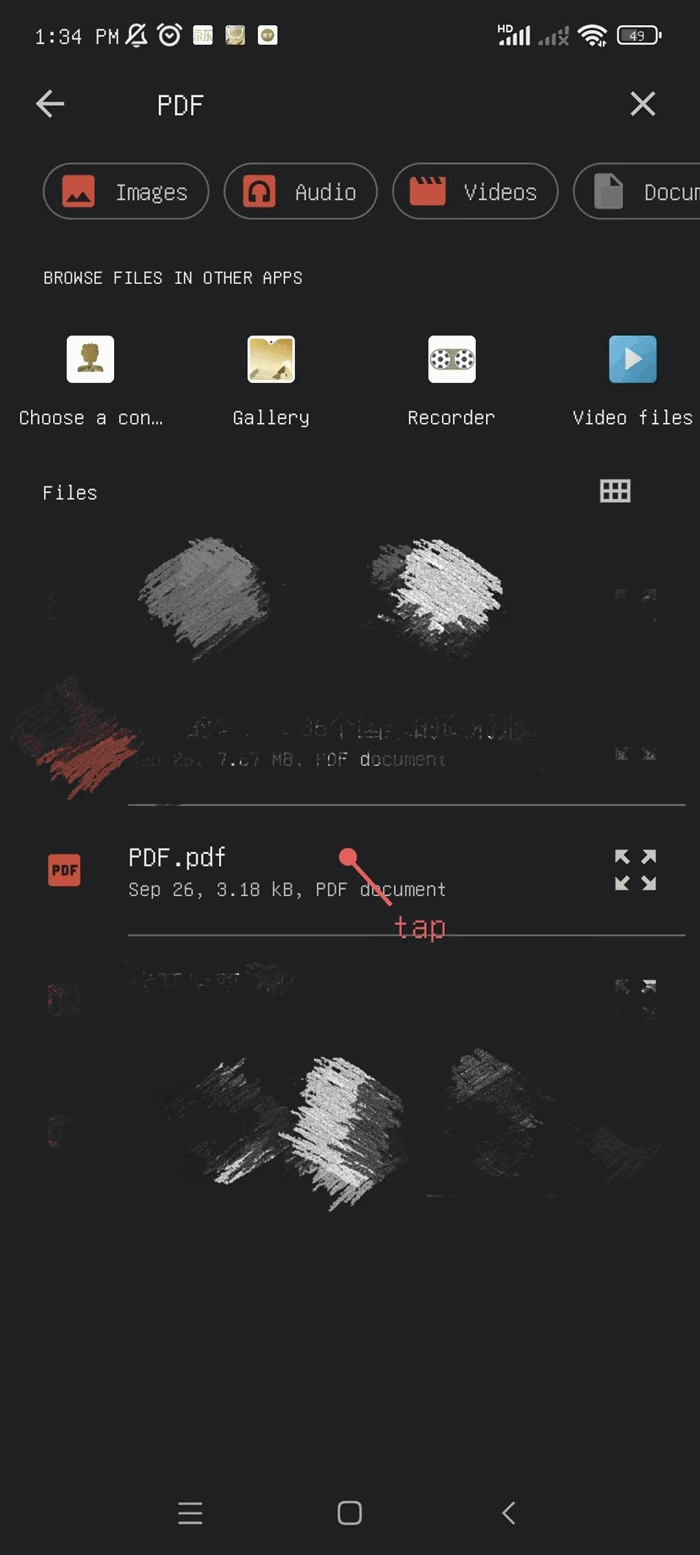
3. Find the PDF file you want to import and tap it.
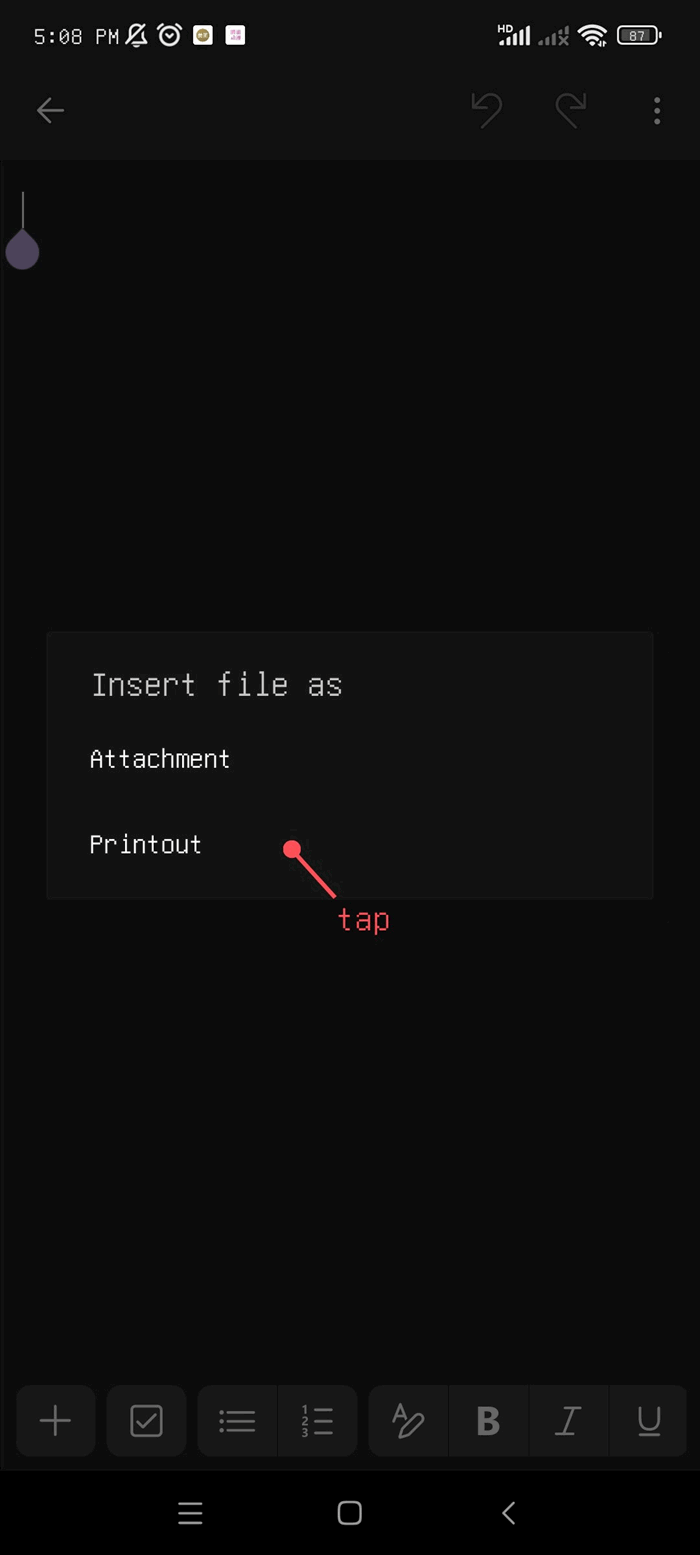
4.Then OneNote will pop up "Insert file As", with 2 options:
- Attachment — this option inserts the PDF file as an attachment into the OneNote page.
- Printout — this option converts the PDF file into "Printouts" and inserts them into the OneNote page.
In this example, we choose "Printout".
5.Below is an example of the PDF you inserted turned into "Printouts".
Printouts are something like images.
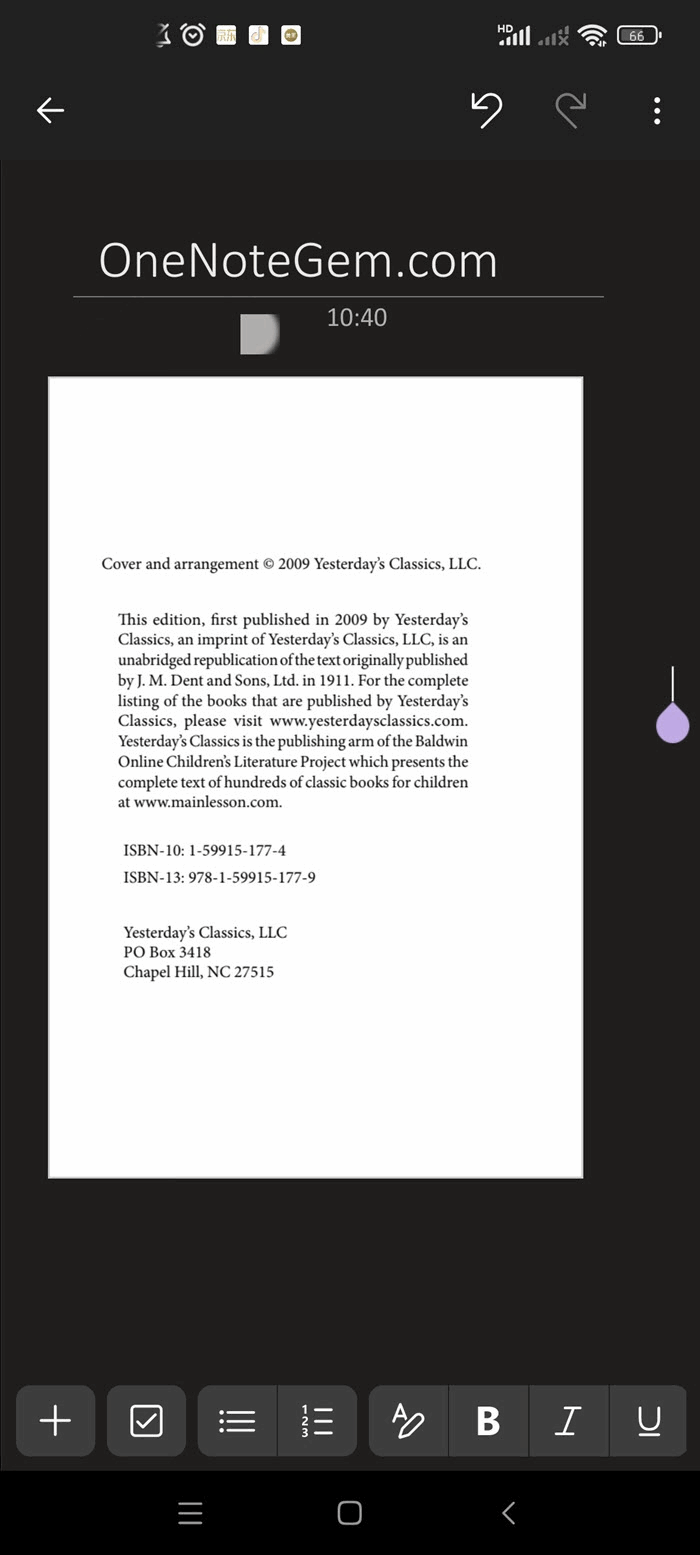
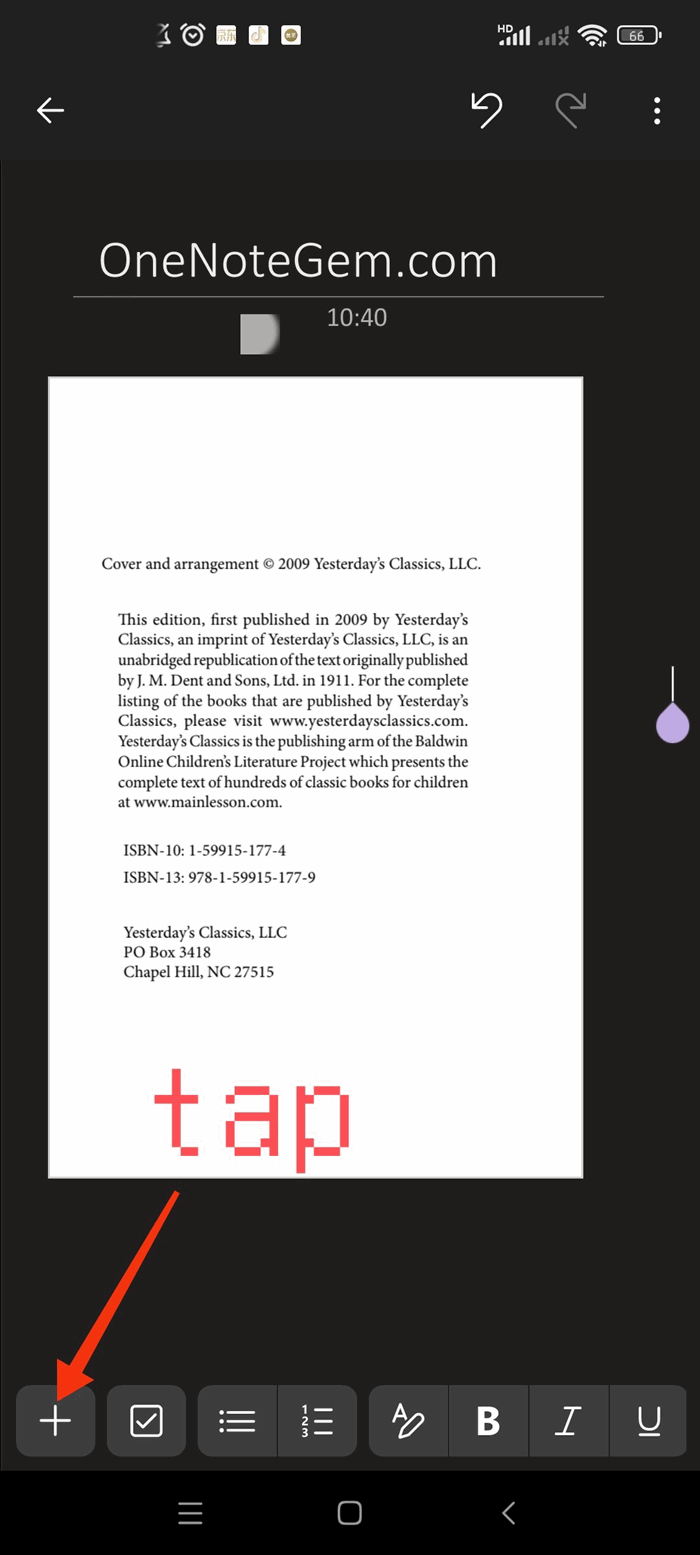
6. Next, you can directly handwriting and highlight key points on the PDF printouts.
Tap the add [➕] icon on the bottom toolbar.
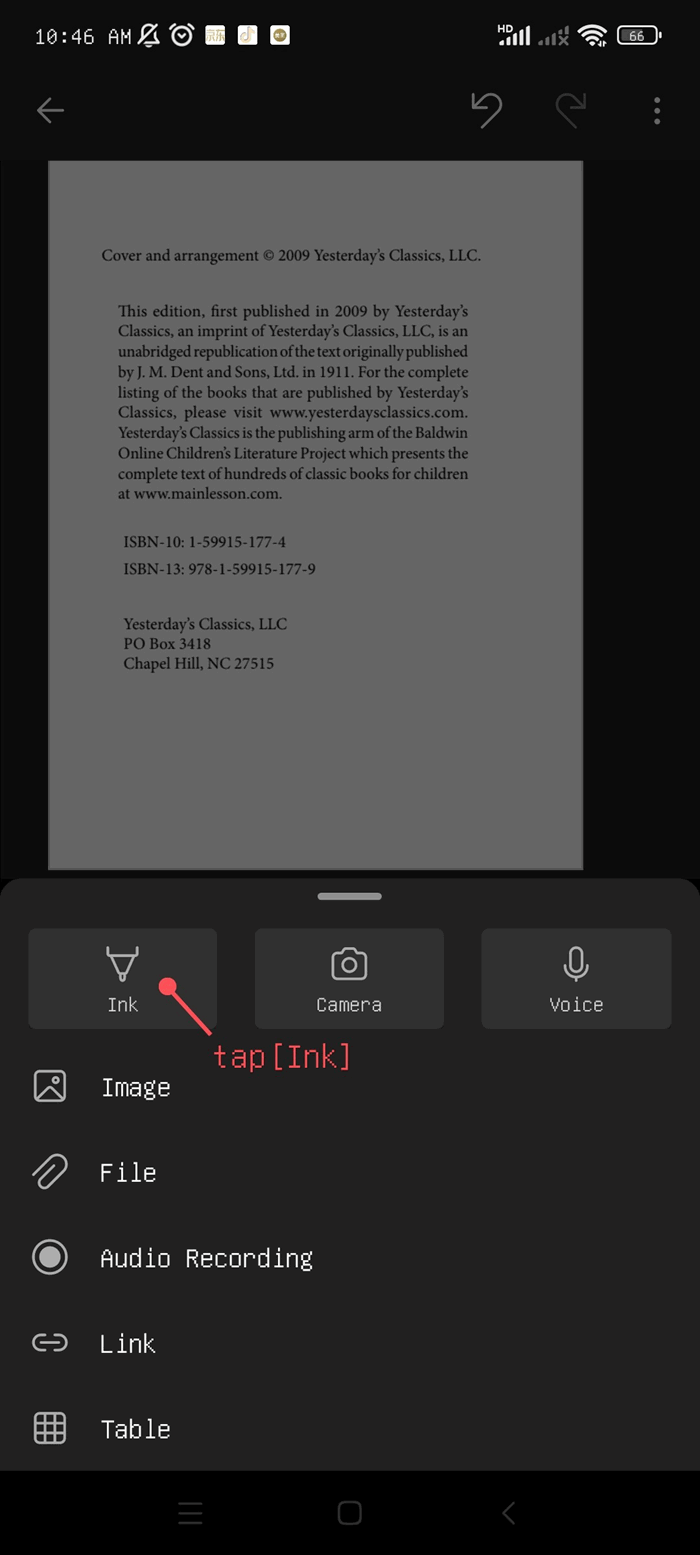
7.In the pop-up menu, tap [Ink].
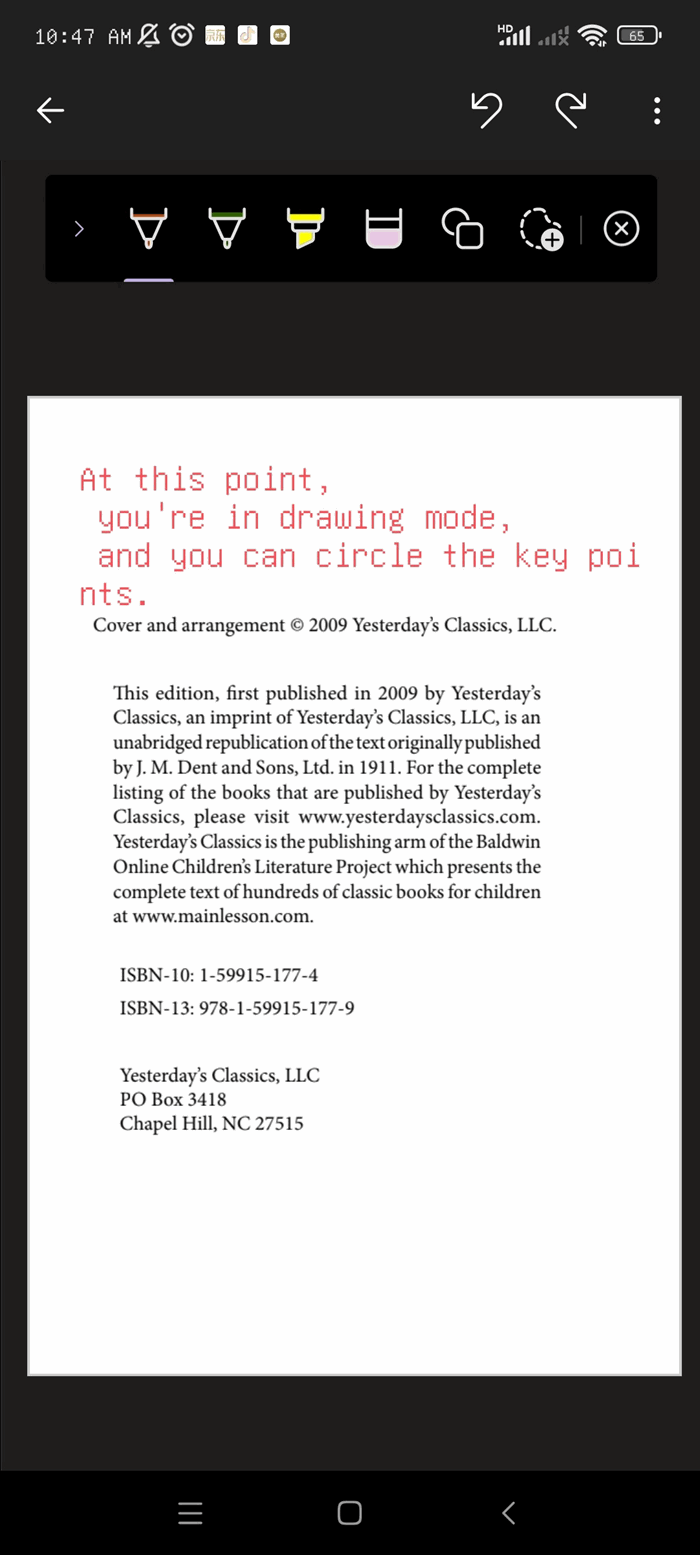
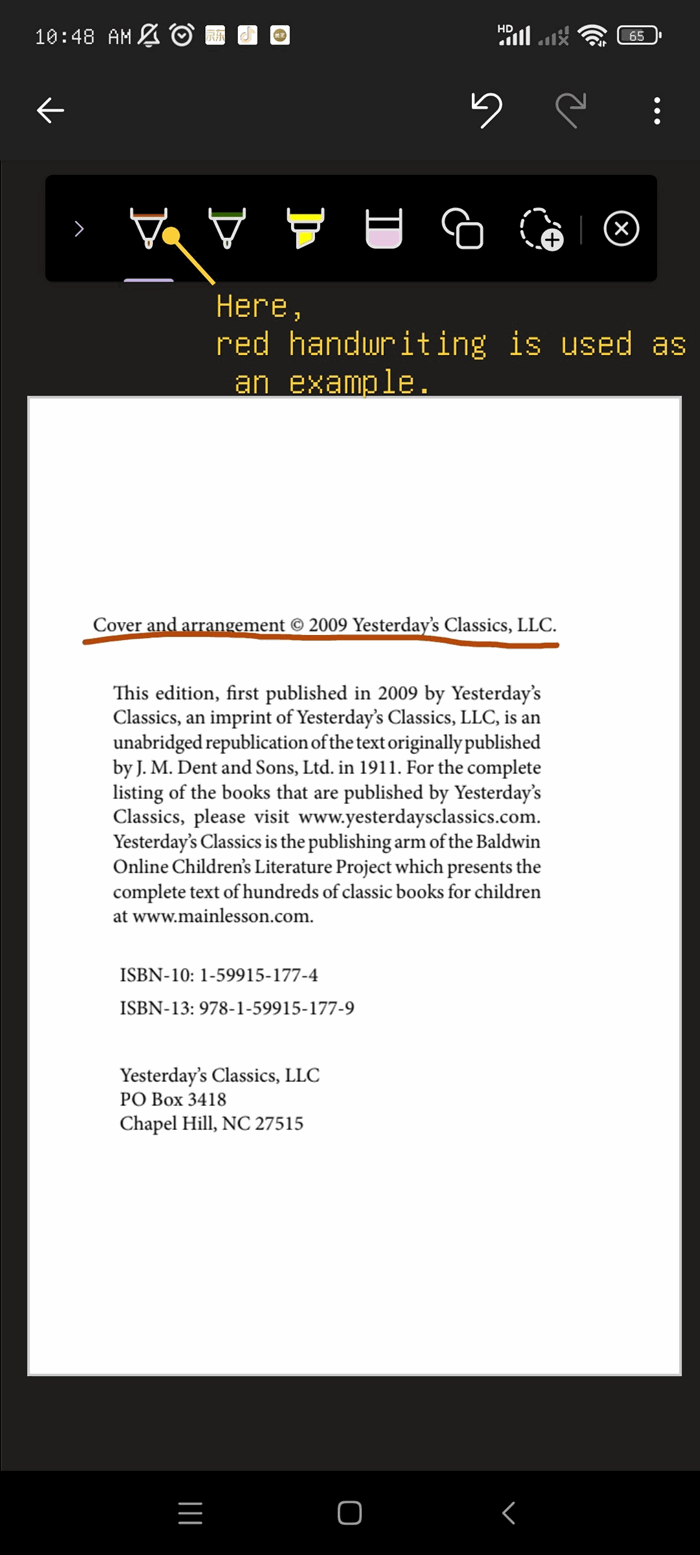
9.The image below shows an example of drawing key points with red ink.
7.In the pop-up menu, tap [Ink].
8.This will enter the drawing interface. On the PDF "Printout", you can:
- Type text or insert images with the keyboard to take notes.
- Choose different colored pens for handwritten annotations.
- Use "Shapes" (square, circle, trapezoid, etc.) to circle and highlight.
9.The image below shows an example of drawing key points with red ink.

