How to import local .one files into a OneNote notebook on OneDrive.com as sections?
2026-02-04 09:26
Local .one Files
Exits 2 .one files:- My Section.one
- Your Section.one

Using Web OneNote to Open “Default Notebook” in OneDrive.com
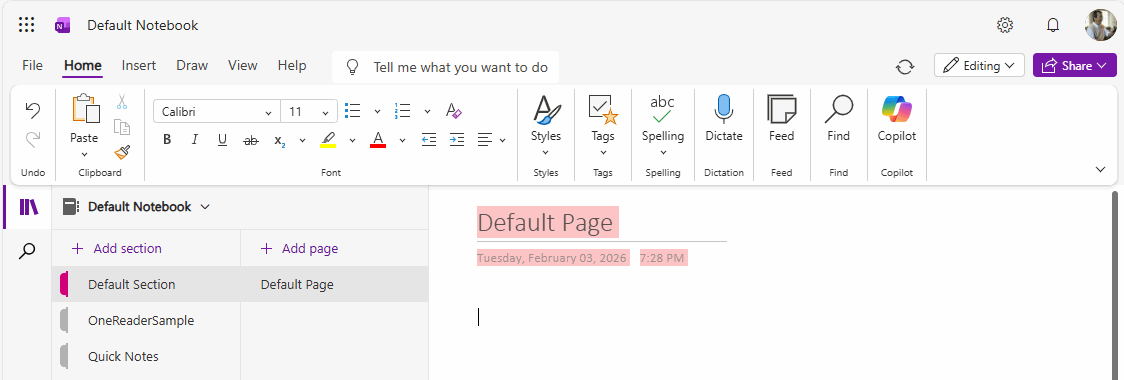
Open the Default Notebook on OneDrive.com with Web OneNote.There are already 3 sections inside.
Restore 2 .one Files into the Default Notebook with OneNote Batch Cloud
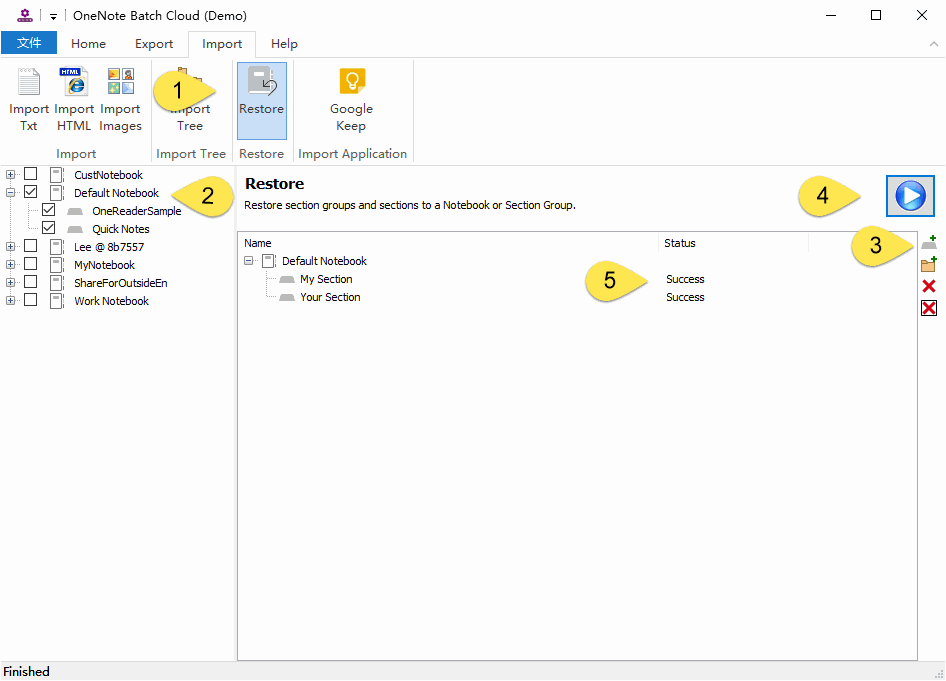
In OneNote Batch Cloud :- Click “Import” tab -> Restore feature.
- In the notebook tree on the left, check the Default Notebook.
- Click the "Add Section" button on the right side to select “My Section.one” and “Your Section.one” files from your local folder. Then, the Restore list displays the generated tree structure, and the 2 .one files below the Default Notebook will become “My Section” and “Your Section” sections.
- Finally, click the "Start" button. Start uploading and restoring these 2 .one files as sections.
- If the recovery is successful, the Status column displays Success.
Reopen the Default Notebook with Web OneNote
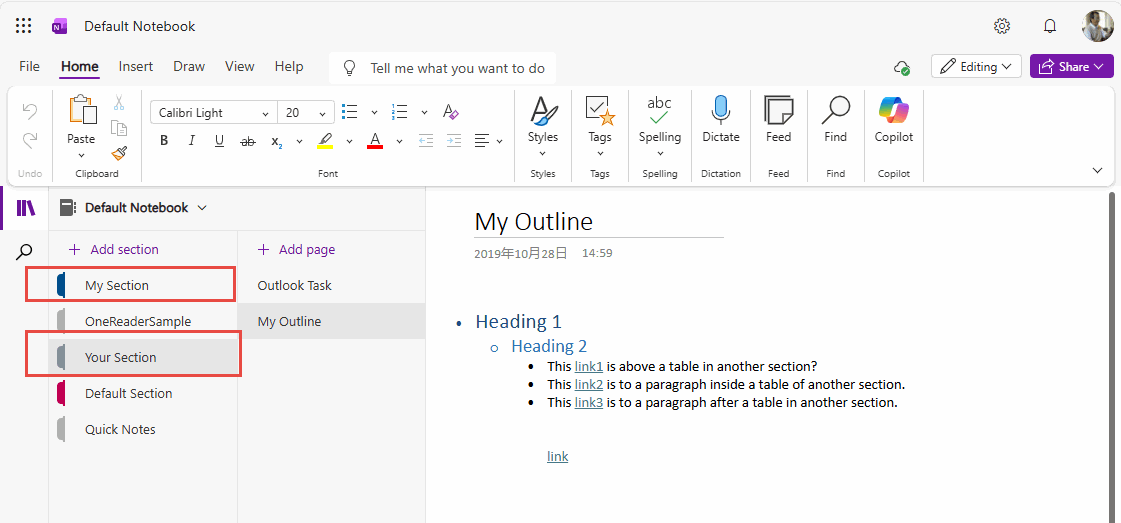
After the recovery is successful, waits for 3 minutes, OneDrive will index the new sections.Reopen the “Default Notebook” with Web OneNote, and you will find “My Section” and “Your Section” appear in the Default Notebook,.
Related Documents
- How to Backup Multiple Sections without Windows OneNote installed?
- How to Copy Multiple OneNote Sections and Section Groups to the Specified Notebook or Section Group at Once?
- View OneNote notebooks, section groups, sections sizes to prevent exceeding the 2GB size limit in OneDrive.com
- Find and Download Sections that disappear due to moving or renaming in the OneNote client

