Search
OneNoteGem
  • Home
  • Addins
    • Windows Office Addins >
      • Gem for OneNote
      • OneNote Search Bar
      • OneNote Gem - Favorites
      • OneNote Batch
      • Pons for MindManager and OneNote
      • Mind Map for OneNote
      • Pons for Visio and OneNote
      • Row to OneNote
      • Auto OneNote
      • Favorite to OneNote
      • Bridge for EndNote and OneNote
      • Anchor to OneNote
      • Anchor to OneNote for PDF
      • Bring to OneNote
      • Gem Table for OneNote
    • Windows Cloud Addins >
      • CiteBoard for OneNote
      • OneReader
      • OneMind for Web OneNote
      • OneNote Reminder Cloud
      • OneNote Batch Cloud
    • Mac Addins >
      • Gem Menu for Mac OneNote
      • CiteBoard for OneNote
      • Bring to Mac OneNote
      • OneMind for Mac OneNote
      • OneNote Reminder for Mac
      • OneNote Batch for Mac
      • Fix One for Mac - Fix OneNote Login, Sync Tools
    • Android Addins >
      • CiteBoard for OneNote
      • Fix One for Android - Fix OneNote Login, Sync Tools
    • Cross-Platform Addins >
      • OneNote Reminder
      • OneMind for OneNote
      • CiteBoard for OneNote
      • Fix One - Fix OneNote Login, Sync Tools
    • Markdown Addins >
      • Gem for OneNote
      • One Markdown
    • Mind Map Addins >
      • OneNote Gem - Favorites
      • Pons for MindManager and OneNote
      • Mind Map for OneNote
      • Pons for Visio and OneNote
      • OneMind for OneNote
    • Other Addins >
      • Gem Menu for OneNote UWP
      • One Markdown
      • Clip to OneNote
      • WordNote
      • OneShare
      • Fix One for Windows - Fix OneNote Login, Sync Tools
      • OneNote for Windows 10 Reviver - UWP Reviver
  • Buy
  • Documents
  • FAQs
  • Templates
  • Support
  • Release
  • WordNote
Mind Map for OneNote
 
 
Using OneNote native elements to create Mind Map

How to Import Section .one files into designated notebook or section group in Office OneNote in bulk?

2026-05-14 07:25
 

OneNote Section .one Files

There are a batch of OneNote section files (.one files) that I want to import into Office OneNote on Windows.
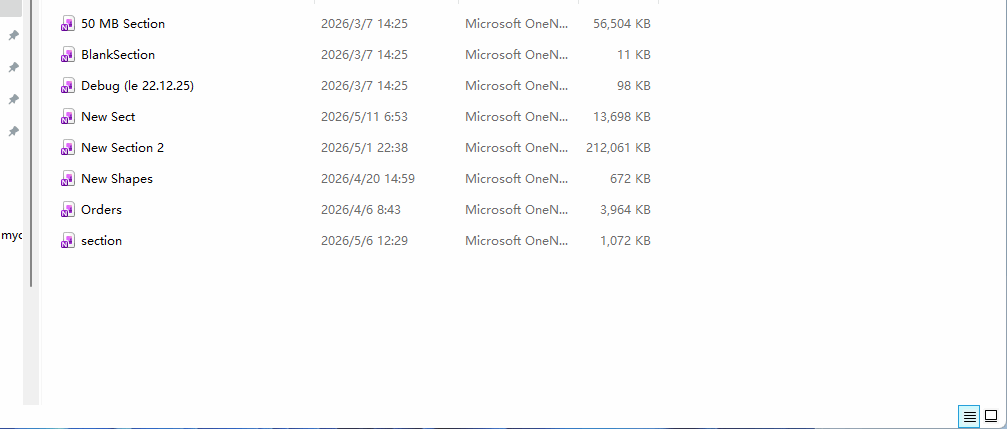

OneNote Section .one Files


Import .one files in bulk using the OneNote Batch

The following steps are to import these files into Office OneNote using the Import Sections feature of the OneNote Batch processor:
  1. Click “Import” tab
  2. Click “Import Sections” feature
  3. Check the target notebook in the left notebook tree: “OneNote Gem” notebook (the sections will be imported into this notebook)
  4. Click the "Add Files" button on the right to add the .one files you need to import. (Shown in the middle list)
  5. Finally, click the Start button on the right to start importing the .one files into the “OneNote Gem” notebook one by one.
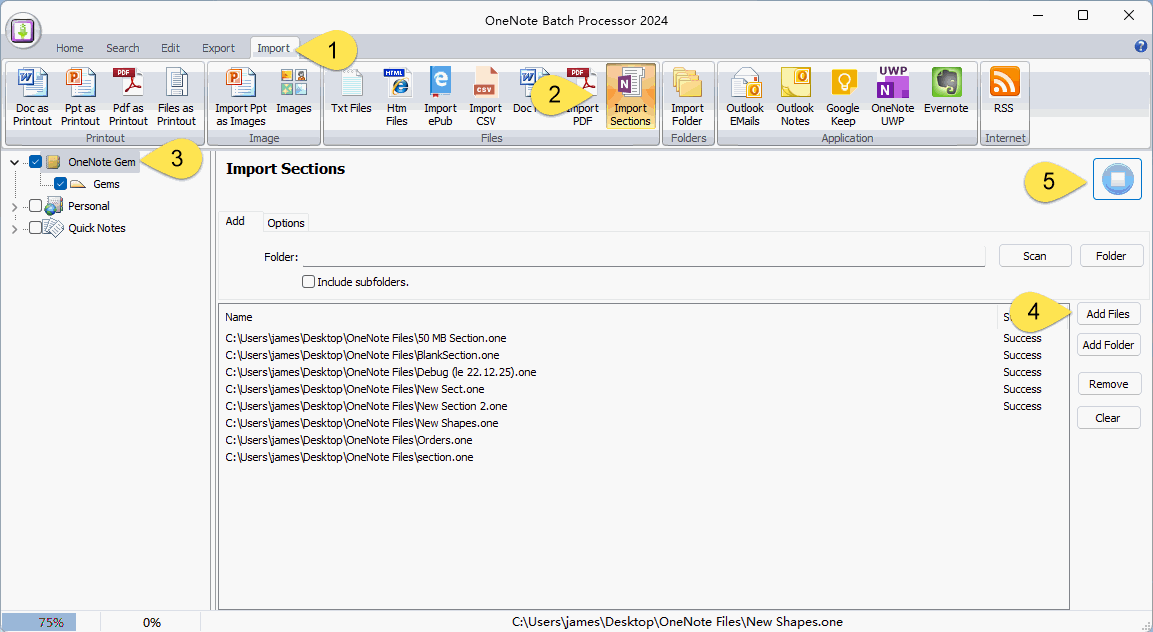
 
Import .one files in bulk using the OneNote Batch


View imported Sections in Office OneNote

After the OneNote Batch import is completed, run OneNote and you can see the imported sections in the “OneNote Gem” notebook.
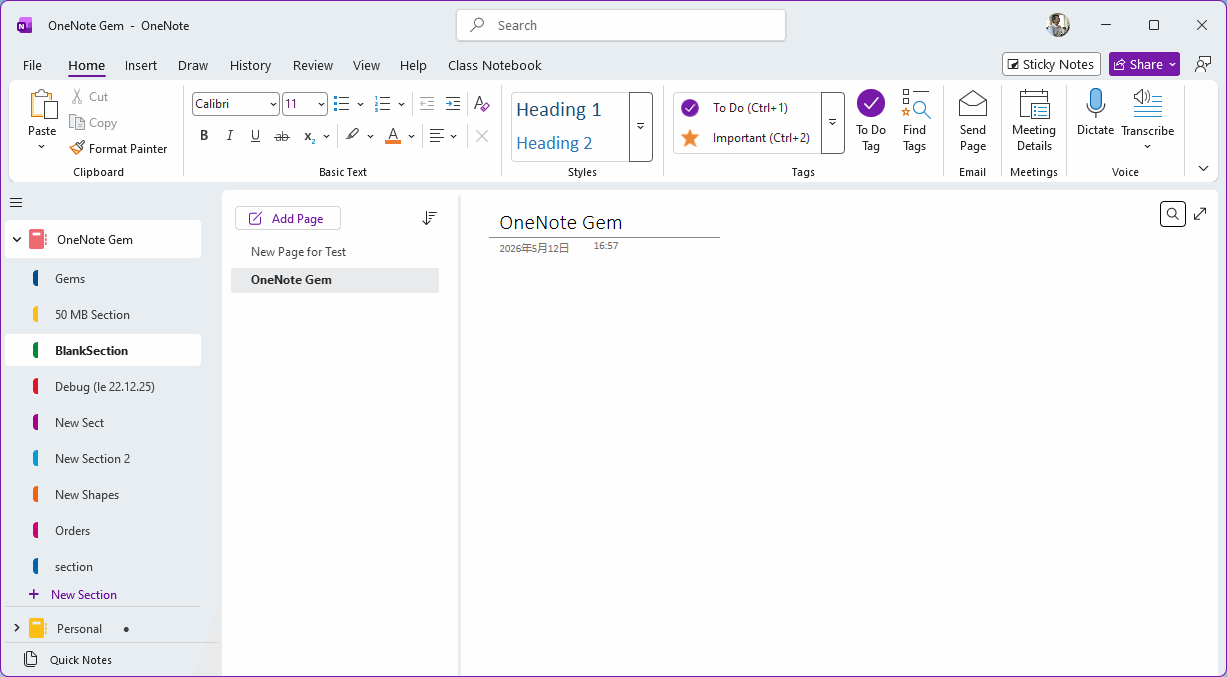

View imported Sections in Office OneNote

 
Download OneNote Batch

Related Documents

  • Successful transfer of OneNote for Windows 10 notes: Import notes that not synced for a long time into Office OneNote
  • How to import unsynced notes from OneNote for Windows 10 into Office OneNote?
  • How to Import Samsung Notes into OneNote?
  • Export Evernote notes to HTML File and Import Them into Office OneNote
  • Export Database Articles from phpMyAdmin as a CSV File and Import them into OneNote
Command Line
Tag System
MindMap Add-Ins Comparison
Search Add-Ins Comparison
One Markdown Syntax
Table Formula
Gantt

Gem Menu Templates
Repair OneNote
OneNote Download
English website Chinese website
Mobile Site
Copyright © 2011-2026 Digital GemSoft. OneNoteGem.com All Rights Reserved.