Search
OneNoteGem
  • Home
  • Addins
    • Windows Office Addins >
      • Gem for OneNote
      • OneNote Search Bar
      • OneNote Gem - Favorites
      • OneNote Batch
      • Pons for MindManager and OneNote
      • Mind Map for OneNote
      • Pons for Visio and OneNote
      • Row to OneNote
      • Auto OneNote
      • Favorite to OneNote
      • Bridge for EndNote and OneNote
      • Anchor to OneNote
      • Anchor to OneNote for PDF
      • Bring to OneNote
      • Gem Table for OneNote
    • Windows Cloud Addins >
      • CiteBoard for OneNote
      • OneReader
      • OneMind for Web OneNote
      • OneNote Reminder Cloud
      • OneNote Batch Cloud
    • Mac Addins >
      • Gem Menu for Mac OneNote
      • CiteBoard for OneNote
      • Bring to Mac OneNote
      • OneMind for Mac OneNote
      • OneNote Reminder for Mac
      • OneNote Batch for Mac
      • Fix One for Mac - Fix OneNote Login, Sync Tools
    • Android Addins >
      • CiteBoard for OneNote
      • Fix One for Android - Fix OneNote Login, Sync Tools
    • Cross-Platform Addins >
      • OneNote Reminder
      • OneMind for OneNote
      • CiteBoard for OneNote
      • Fix One - Fix OneNote Login, Sync Tools
    • Markdown Addins >
      • Gem for OneNote
      • One Markdown
    • Mind Map Addins >
      • OneNote Gem - Favorites
      • Pons for MindManager and OneNote
      • Mind Map for OneNote
      • Pons for Visio and OneNote
      • OneMind for OneNote
    • Other Addins >
      • Gem Menu for OneNote UWP
      • One Markdown
      • Clip to OneNote
      • WordNote
      • OneShare
      • Fix One for Windows - Fix OneNote Login, Sync Tools
      • OneNote for Windows 10 Reviver - UWP Reviver
  • Buy
  • Documents
  • FAQs
  • Templates
  • Support
  • Release
  • WordNote
Mind Map for OneNote
 
 
Using OneNote native elements to create Mind Map

Quickly Jump to a Notebook in Office OneNote

2026-08-13 06:04
 
If you have opened many notebooks in Office OneNote, finding and jumping to a specific notebook becomes difficult.
 
The notebook grouping feature of "OneNote Gem - Favorites" offers a quick jump to an opened OneNote notebook.
 

Create a new "All Notebooks" notebook group

In "OneNote Gem - Favorites", click "Navigation" tab -> "Notebook" menu -> "New Group" menu item.
 
In the pop-up "New Notebook Group" window, enter: All notebooks.
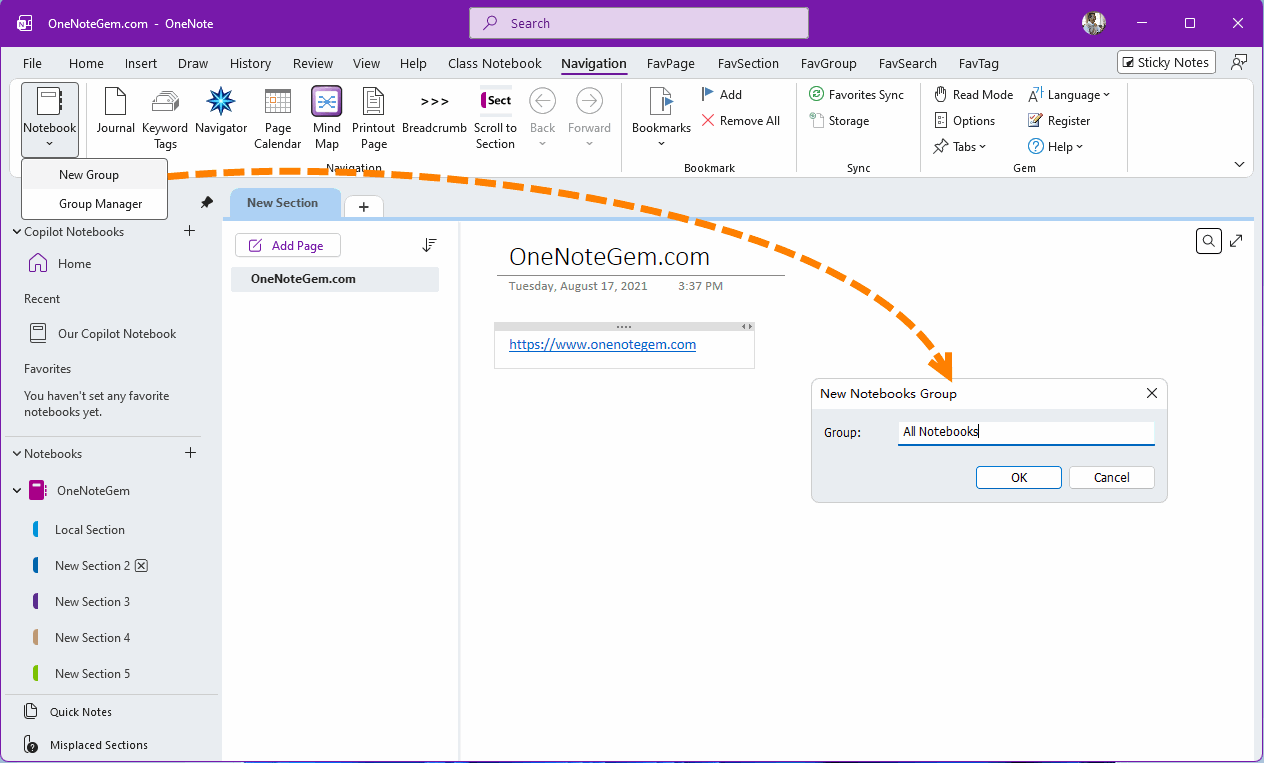

Create a new "All Notebooks" notebook group

Add all notebooks to this group

Then, under the "Notebooks" menu, a new submenu called "All Notebooks" will appear.
 
Then click the "Add all Notebooks to Group" menu item.
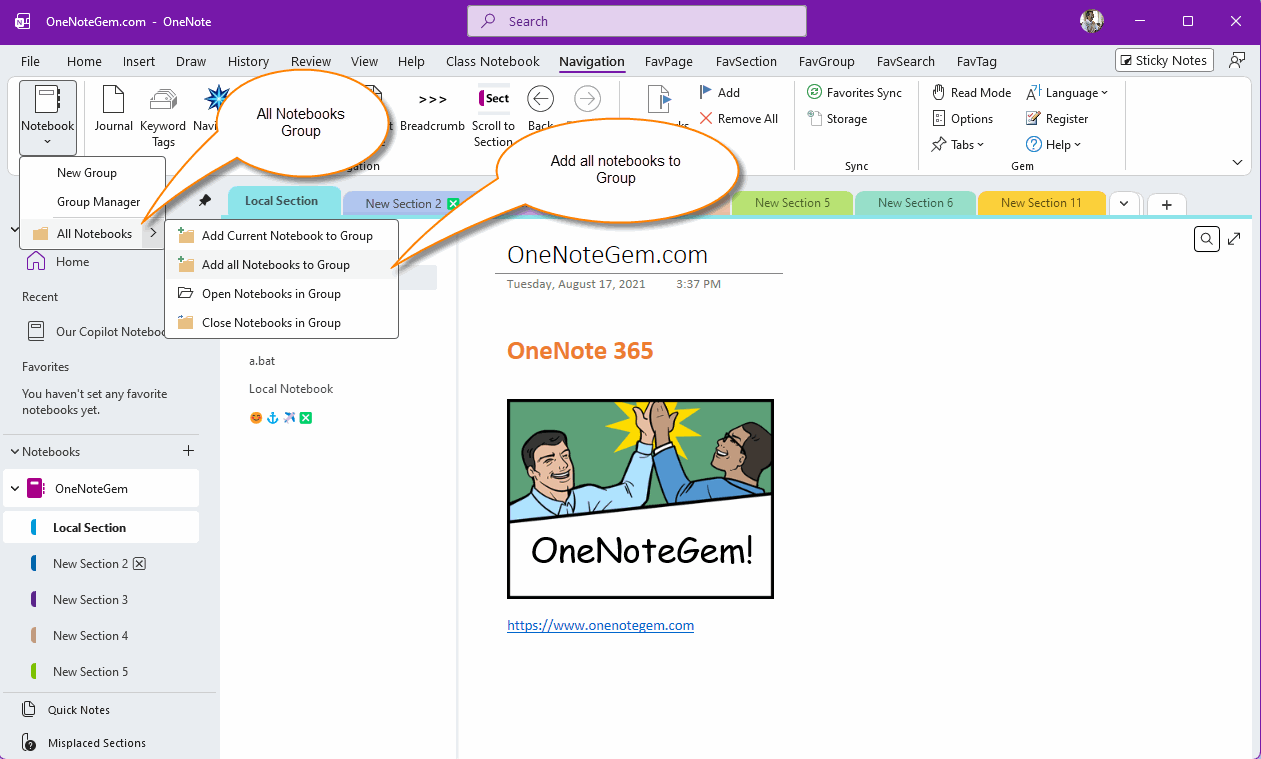

Add all notebooks to this group


List all opened notebooks in the group

When you click the "All Notebooks" submenu, you will see all the notebooks that have been opened.
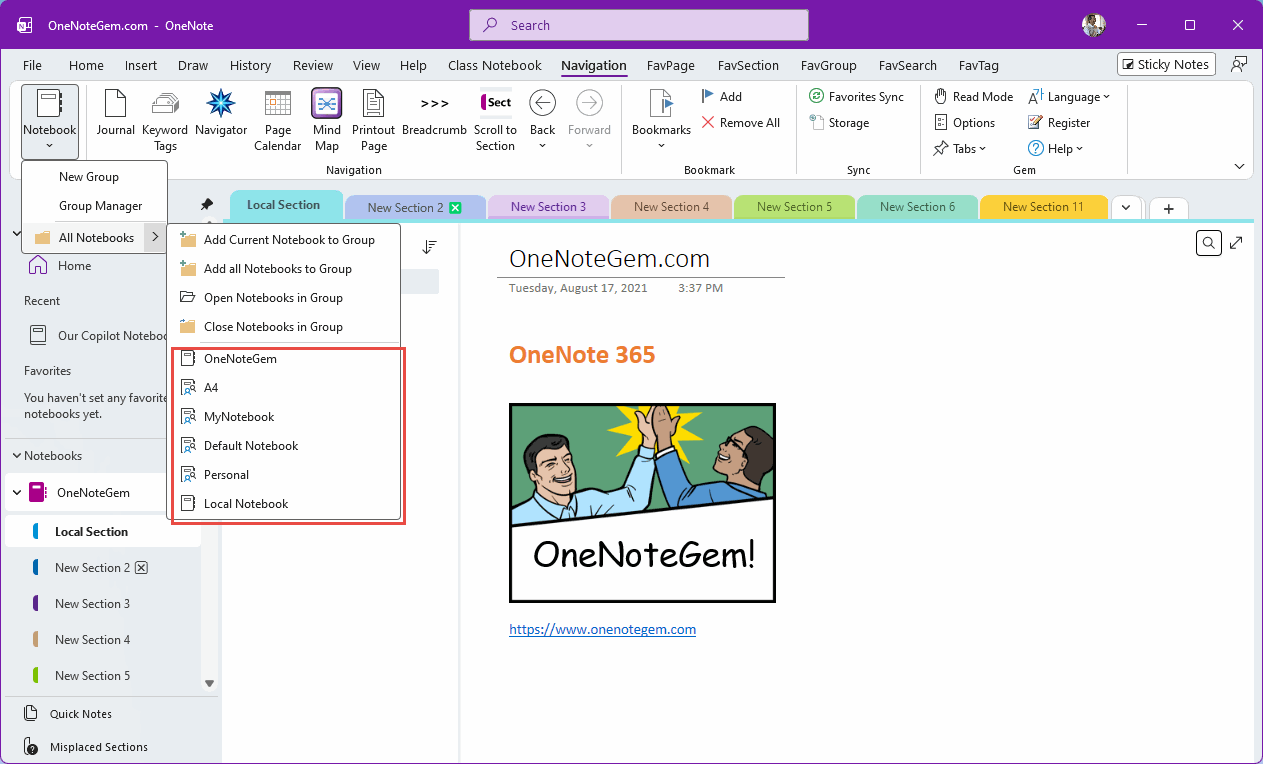

List all opened notebooks in the group

Click and Jump to a Notebook

We only need to click a specific menu item on a notebook to jump to that notebook.
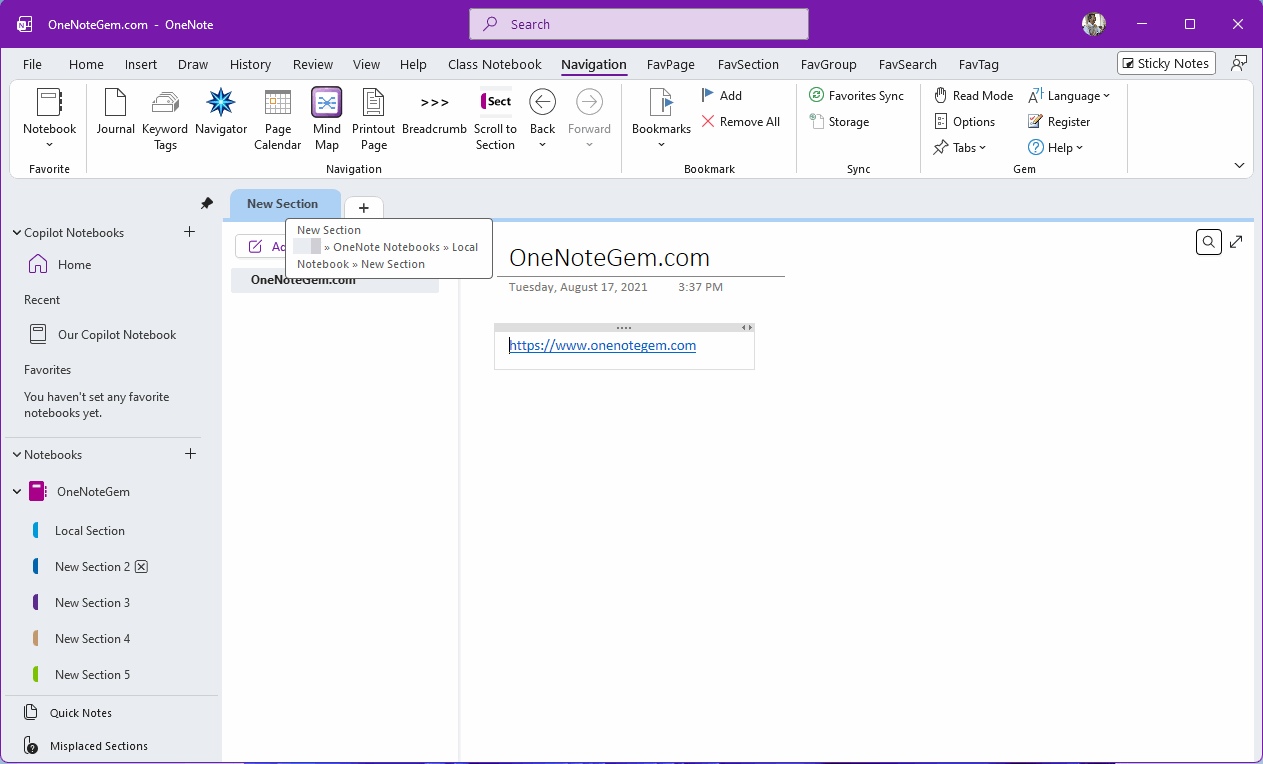

Click and Jump to a Notebook


Defects

This kind of jump in Office OneNote has a flaw: it only shows the page of the notebook. However, in the left notebook tree pane, there is no scroll to that notebook or section. This leads to difficulties in further navigation use.


Download OneNote Gem - Favorites

Related Documents

  • Quickly Jump to Specify PDF Printout Page in a Single OneNote Page
  • OneNote notebooks, sections, pages tree
  • Grouping OneNote Notebooks, Close or Open a Group of OneNote Notebooks.
Command Line
Tag System
MindMap Add-Ins Comparison
Search Add-Ins Comparison
One Markdown Syntax
Table Formula
Gantt

Gem Menu Templates
Repair OneNote
OneNote Download
English website Chinese website
Mobile Site
Copyright © 2011-2026 Digital GemSoft. OneNoteGem.com All Rights Reserved.