Search
OneNoteGem
  • Home
  • Addins
    • Windows Office Addins >
      • Gem for OneNote
      • OneNote Search Bar
      • OneNote Gem - Favorites
      • OneNote Batch
      • Pons for MindManager and OneNote
      • Mind Map for OneNote
      • Pons for Visio and OneNote
      • Row to OneNote
      • Auto OneNote
      • Favorite to OneNote
      • Bridge for EndNote and OneNote
      • Anchor to OneNote
      • Anchor to OneNote for PDF
      • Bring to OneNote
      • Gem Table for OneNote
    • Windows Cloud Addins >
      • CiteBoard for OneNote
      • OneReader
      • OneMind for Web OneNote
      • OneNote Reminder Cloud
      • OneNote Batch Cloud
    • Mac Addins >
      • Gem Menu for Mac OneNote
      • CiteBoard for OneNote
      • Bring to Mac OneNote
      • OneMind for Mac OneNote
      • OneNote Reminder for Mac
      • OneNote Batch for Mac
      • Fix One for Mac - Fix OneNote Login, Sync Tools
    • Android Addins >
      • CiteBoard for OneNote
      • Fix One for Android - Fix OneNote Login, Sync Tools
    • Cross-Platform Addins >
      • OneNote Reminder
      • OneMind for OneNote
      • CiteBoard for OneNote
      • Fix One - Fix OneNote Login, Sync Tools
    • Markdown Addins >
      • Gem for OneNote
      • One Markdown
    • Mind Map Addins >
      • OneNote Gem - Favorites
      • Pons for MindManager and OneNote
      • Mind Map for OneNote
      • Pons for Visio and OneNote
      • OneMind for OneNote
    • Other Addins >
      • Gem Menu for OneNote UWP
      • One Markdown
      • Clip to OneNote
      • WordNote
      • OneShare
      • Fix One for Windows - Fix OneNote Login, Sync Tools
      • OneNote for Windows 10 Reviver - UWP Reviver
  • Buy
  • Documents
  • FAQs
  • Templates
  • Support
  • Release
  • WordNote
Mind Map for OneNote
 
 
Using OneNote native elements to create Mind Map

How to Enable the Android OneNote Floatie to Take Note while Using Other App?

2026-10-05 05:34
 
Android OneNote has a feature that many people overlook, called the OneNote Floatie.
 
After enabling the Floatie, a semi-transparent small purple line will appear on the left or right edge of your phone screen.
 
Whether you are browsing the web, watching videos, or replying to messages, just tap it to pop up the Floatie, making it convenient to write in a sticky note window without switching back to OneNote.
 
[In short, no need to switch back and forth, making it convenient and efficient.]


Turn on OneNote Floatie

 
1. Open the Home screen of OneNote for Android, then tap Account to open the account screen.
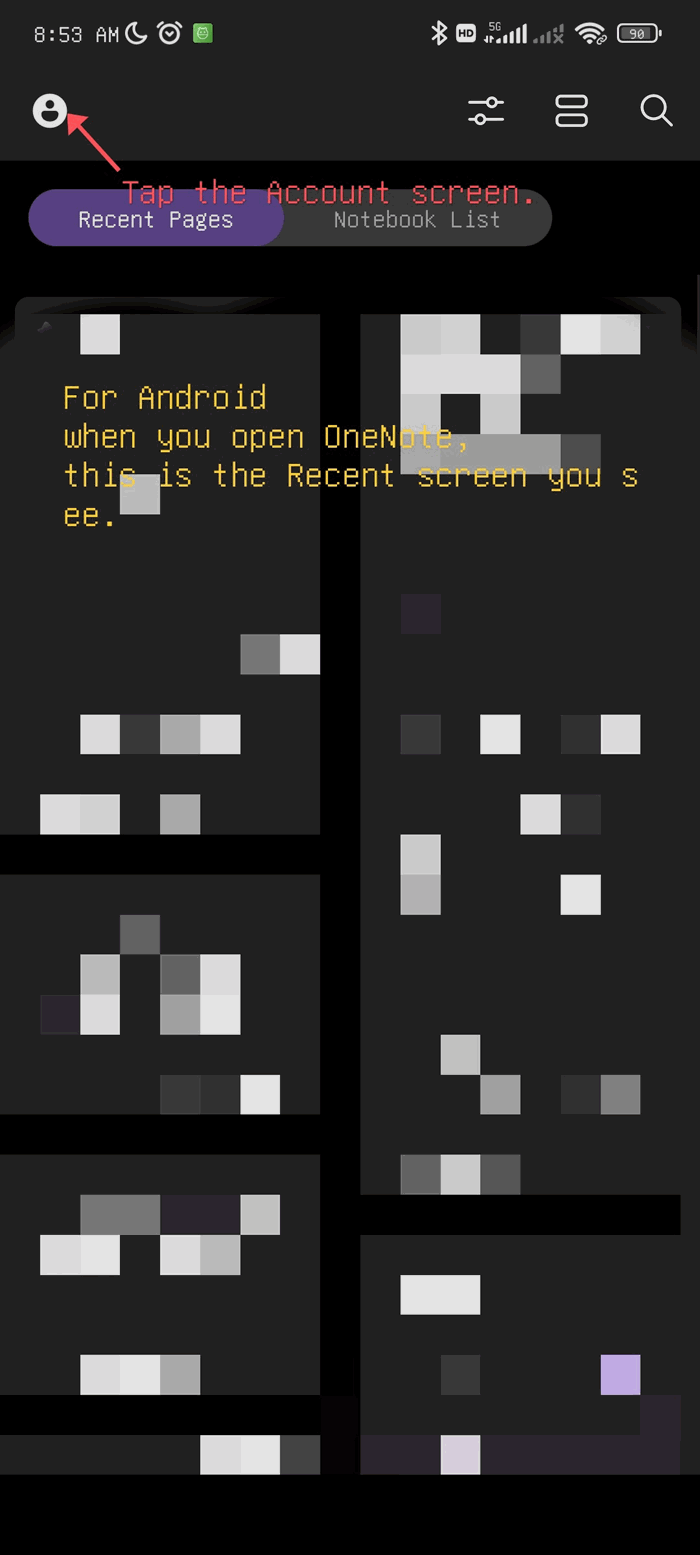
tap Account


2. After entering the account screen, open the Settings screen.
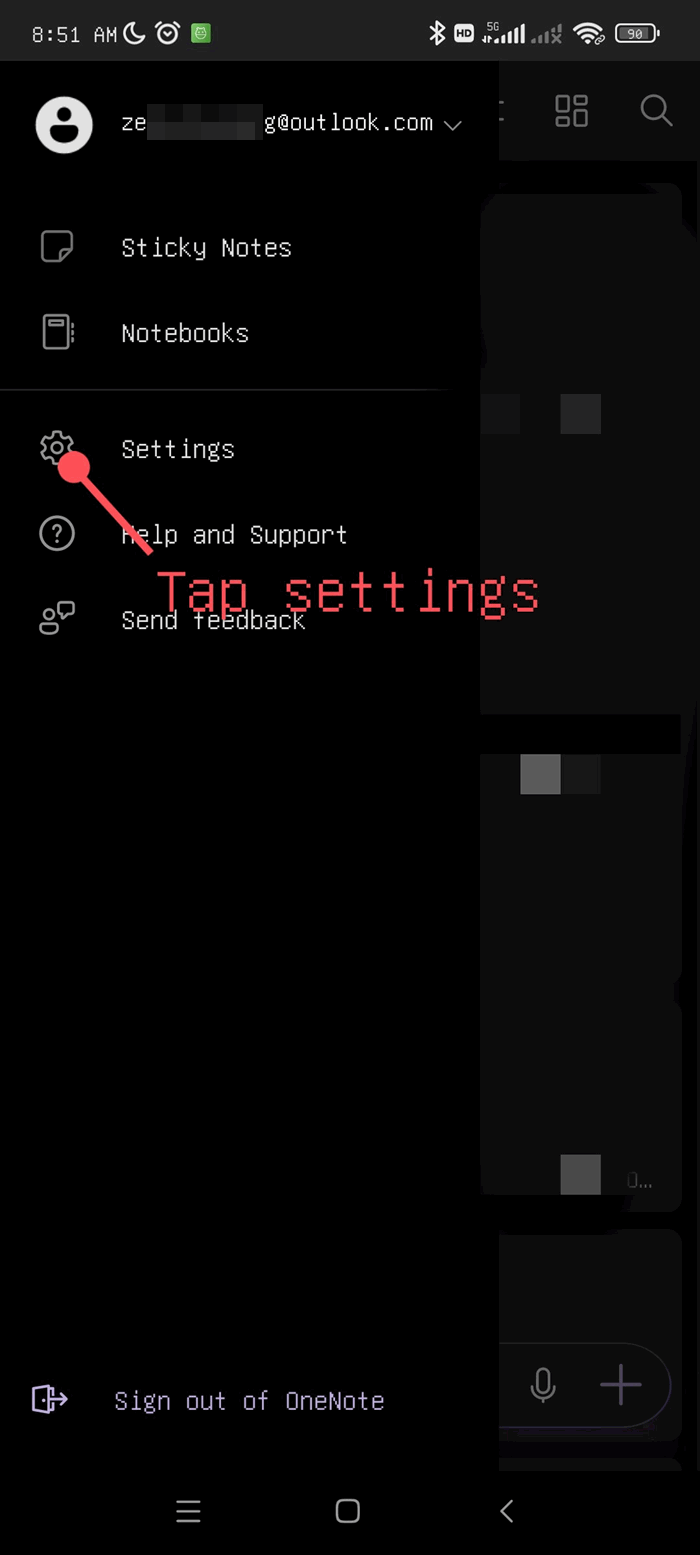
account screen


3. After entering the Settings screen, find OneNote Floatie and toggle it on.
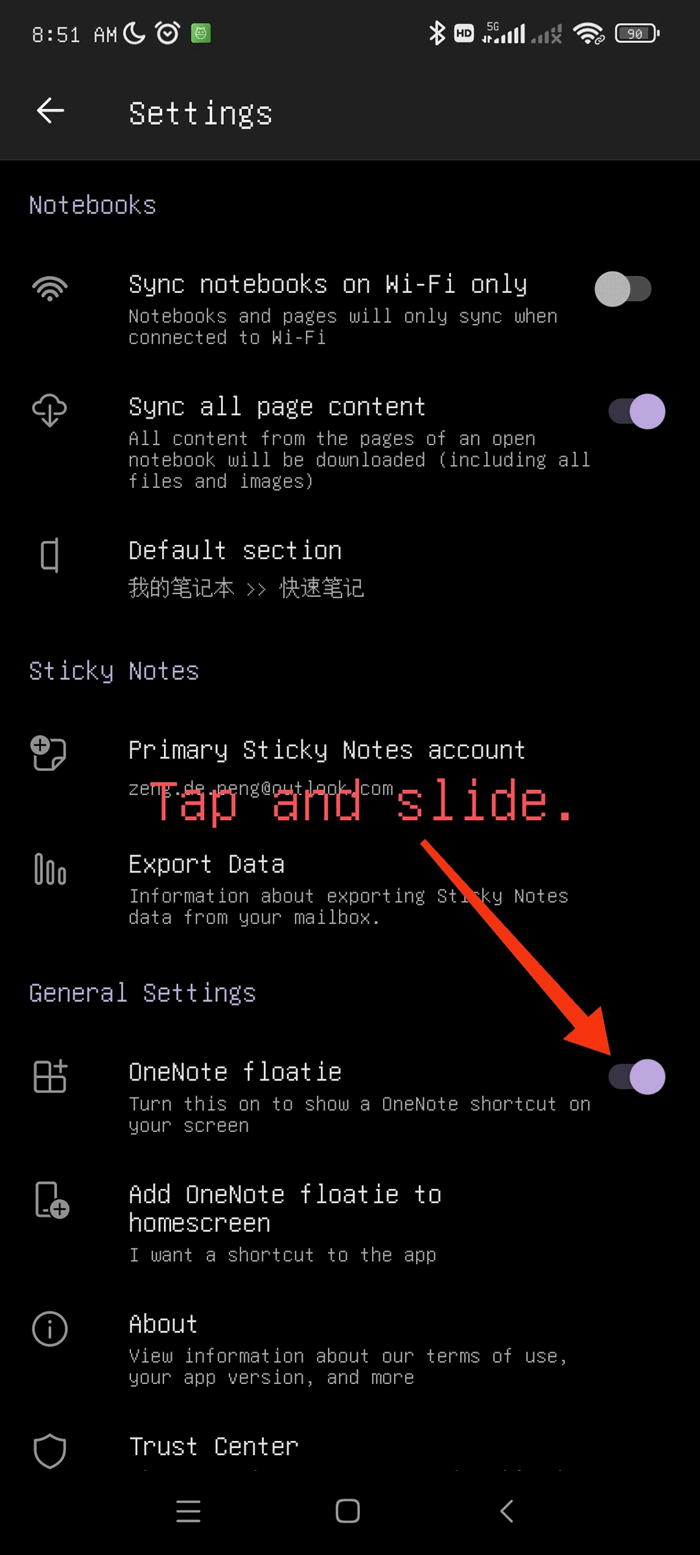
 After entering the Settings screen, find OneNote Floatie and toggle it on.


Use OneNote Floatie

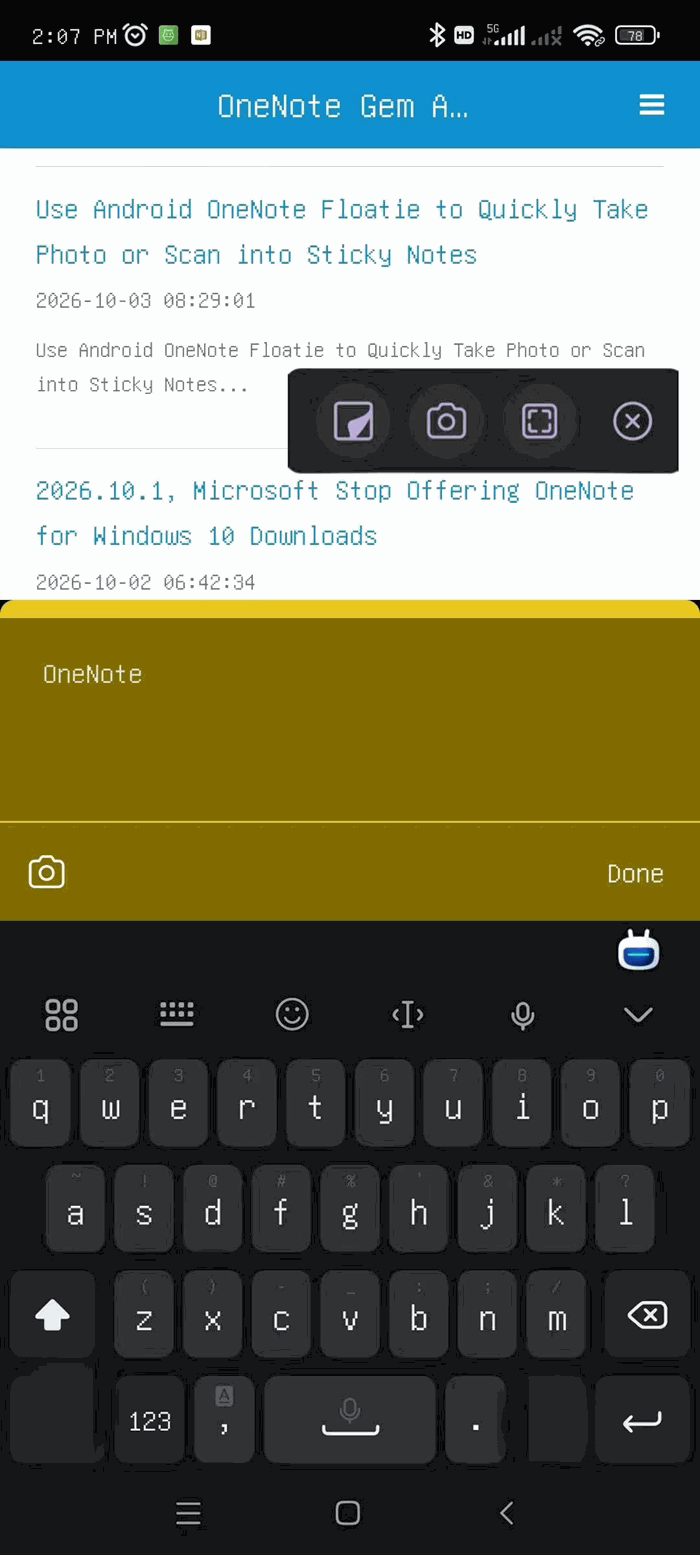
4. When you are using a browser, whether reading an article or browsing a webpage, a semi-transparent purple line will appear on the left edge of the screen. This is OneNote Floatie.
 
Tap it to directly bring up the OneNote floating window without exiting browser.
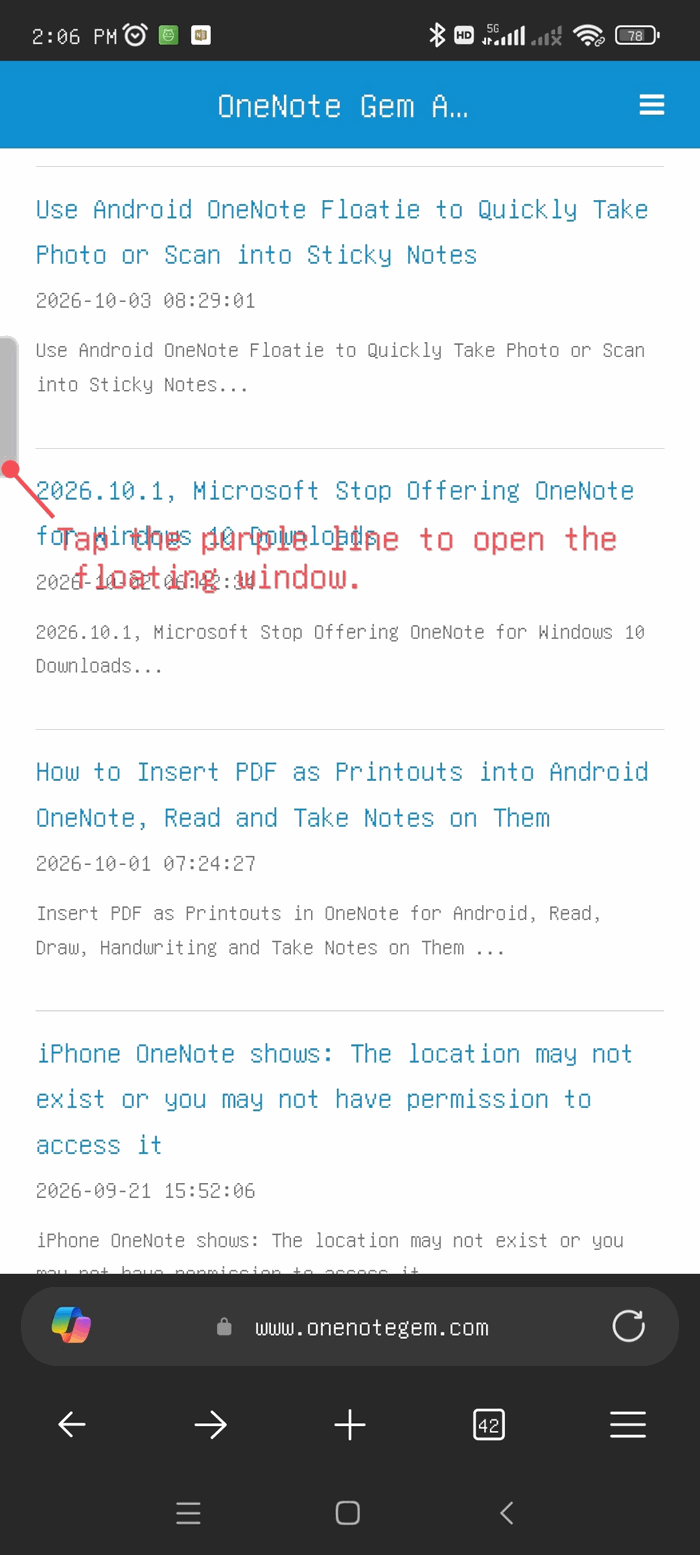
OneNote floatie dock line


5. After tapping the purple line, the Floatie window pops up at the top of the screen. In the window, from left to right, are:
  • Sticky Notes,
  • Camera,
  • Scan.
 
Here we take OneNote as an example. Tap the camera icon on the Floatie to take a photo or scan a document, and it will be inserted directly into your note.
 
OneNote-floatie-and-sticky-note


OneNote Floatie Save Location


Click to View all Content
 

Related Documents

  • Use Android OneNote Floatie to Quickly Take Photo or Scan into Sticky Notes
  • Android OneNote: Sticky Notes can't sync your notes because you are signed out
Command Line
Tag System
MindMap Add-Ins Comparison
Search Add-Ins Comparison
One Markdown Syntax
Table Formula
Gantt

Gem Menu Templates
Repair OneNote
OneNote Download
English website Chinese website
Mobile Site
Copyright © 2011-2026 Digital GemSoft. OneNoteGem.com All Rights Reserved.